Photo Resizer
Resize a scan or photo to exact pixel dimensions — or just halve it for web and email — with the aspect ratio locked, live in your browser.
把扫描件或照片缩放到精确像素尺寸——或直接减半用于网页与邮件——纵横比锁定,浏览器实时预览。
Private by design — your photo is processed locally and never uploaded.Drop a photo here, or click to browse
Supported formats: JPG, PNG, WebP, GIF, BMP
Drag to compare
Tip: for email and web, long edge around 1600–1920px is usually plenty; for printing, keep 300 DPI worth of pixels.
提示:网页与邮件长边约 1600–1920 像素通常足够;冲印则需保留约 300 DPI 的像素量。
How It Works
The Photo Resizer draws your image into a new canvas at the exact width and height you enter, using bilinear interpolation — each output pixel is blended from the nearest source pixels, so edges stay smooth instead of blocky. No server is involved; the whole resize happens on your device.
Exact pixel control
Type the target width or height in pixels. Use it to match upload limits, print sizes or canvas slots.
Locked aspect ratio
With the lock on, changing one dimension automatically keeps the other in proportion, so faces and buildings never stretch.
Percentage presets
One tap at 25%, 50%, 75% or 100% scales the whole photo for the web, thumbnails or email attachments.
Live preview
The after pane shows the resized result instantly so you can judge softness before you download.
An honest note on upscaling: resizing can only interpolate pixels that already exist. Making a small photo much larger will blur it rather than add real detail — for the sharpest results, start from a high-resolution scan and downscale.
Photo Resizer 用双线性插值把你的图片绘制到你输入的精确宽高的新画布上——每个输出像素都由最近的若干源像素混合而成,因此边缘平滑而不会出现马赛克。全程不经过服务器,缩放都在你的设备上完成。
精确像素控制
直接输入目标宽或高(像素)。用于匹配上传限制、冲印尺寸或画布位。
锁定纵横比
锁定后,改变一个维度会自动按比例联动另一个,人脸与建筑都不会被拉变形。
百分比预设
一键按 25%、50%、75%、100% 整体缩放,适合网页、缩略图或邮件附件。
实时预览
右侧即时显示缩放结果,下载前就能判断是否发虚。
关于放大的诚实说明:缩放只能对已有像素做插值。把小图放得很大只会变虚,不会增加真实细节——想要最清晰的结果,请用高分辨率扫描件做缩小。
How to Use
- Upload your photoDrag it in or click to browse. The tool reads its natural width and height automatically.
- Set the target sizeType a new width (height follows automatically if the lock is on), or tap a 25/50/75/100% preset.
- Check the live previewDrag the compare handle to see the resized output. If it looks soft, you may have upscaled too far.
- DownloadExport as PNG for lossless editing, JPG for sharing, or WebP for the smallest file.
- 上传照片拖入或点击选择,工具会自动读取它的原始宽高。
- 设定目标尺寸输入新的宽(锁定时高会自动联动),或点 25/50/75/100% 预设。
- 查看实时预览拖动对比滑块查看缩放结果。若发虚,说明放大过度。
- 下载无损编辑选 PNG,分享选 JPG,追求最小体积选 WebP。
FAQ
Does resizing reduce quality?
What is "lock aspect ratio" for?
What size should I use for web or email?
Is my photo uploaded when I resize?
Which output format is best after resizing?
缩放会降低质量吗?
「锁定纵横比」有什么用?
网页或邮件该用多大尺寸?
缩放时照片会被上传吗?
缩放后用哪种格式最好?
Related Tools
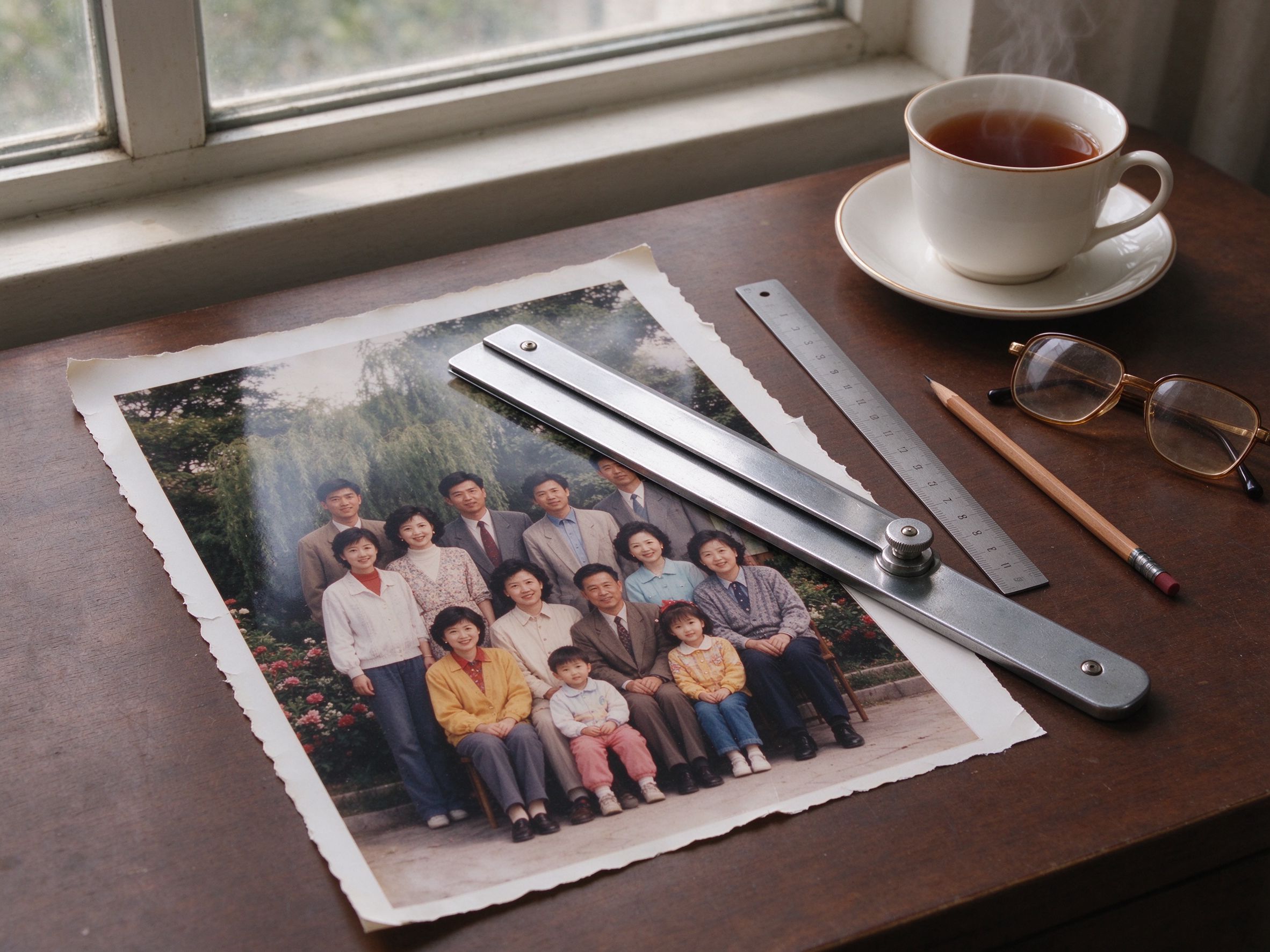
Photo Cropper
Trim edges with a draggable box and ratio presets.
用可拖拽框与比例预设裁切边缘。
Image Compressor
Shrink file size for web and email while watching the savings.
为网页与邮件压缩体积,实时查看节省比例。
Batch Converter
Convert many photos to JPG, PNG or WebP at once, locally.
在本地批量把多张照片转为 JPG、PNG 或 WebP。
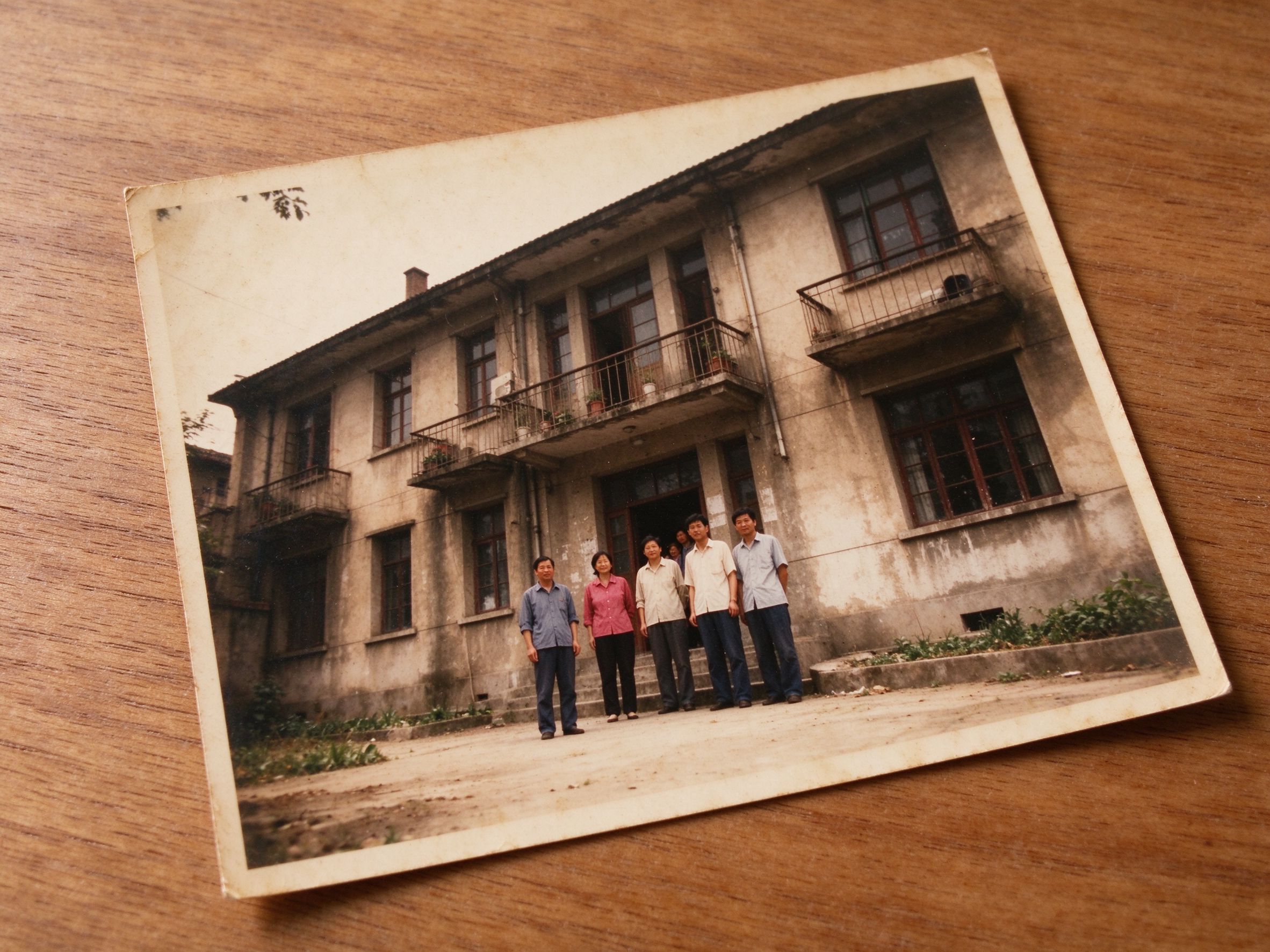
Perspective Corrector
Straighten a skewed scan by dragging its four corners.
拖动四个角点,校正倾斜扫描件的透视。
Faded Photo Fixer
Revive washed-out color and contrast after you resize.
缩放之后再恢复褪去的色彩与对比度。
Photo Sharpener
Recover crisp edges after downsizing soft scans.
缩小发虚扫描件后恢复清晰边缘。
Related Guides
Scanning Old Photos: Best Settings
Scan high, then downsize — the best workflow for clear files.
先高分辨率扫描再缩小——获得清晰文件的最佳流程。
10 Photo Care Tips
Keep your digital archive organized and correctly sized.
让数字归档井井有条、尺寸得当。
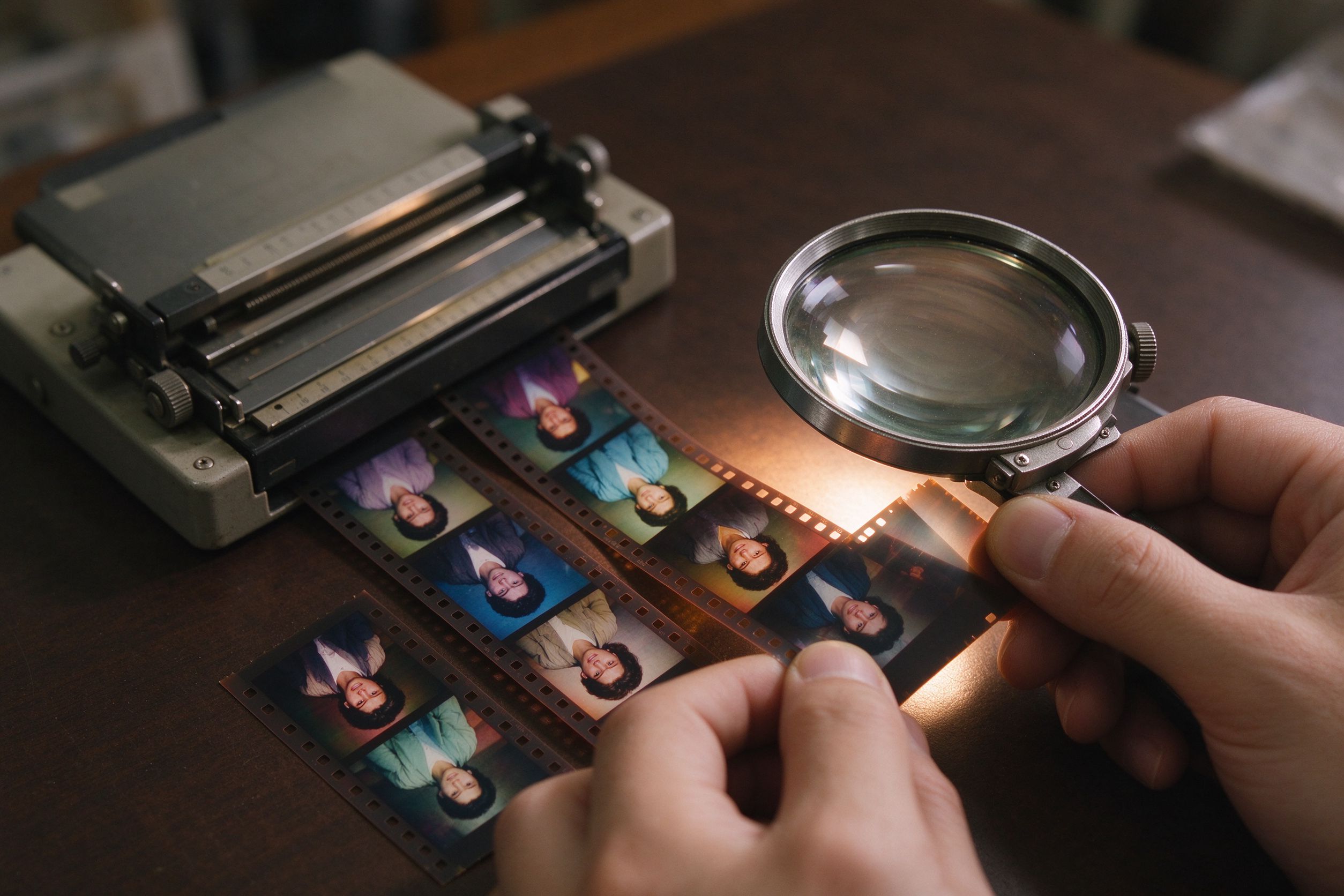
Film Scan Restoration
Handle dust, grain and color shifts after resizing scans.
缩放扫描件后处理灰尘、颗粒与偏色。
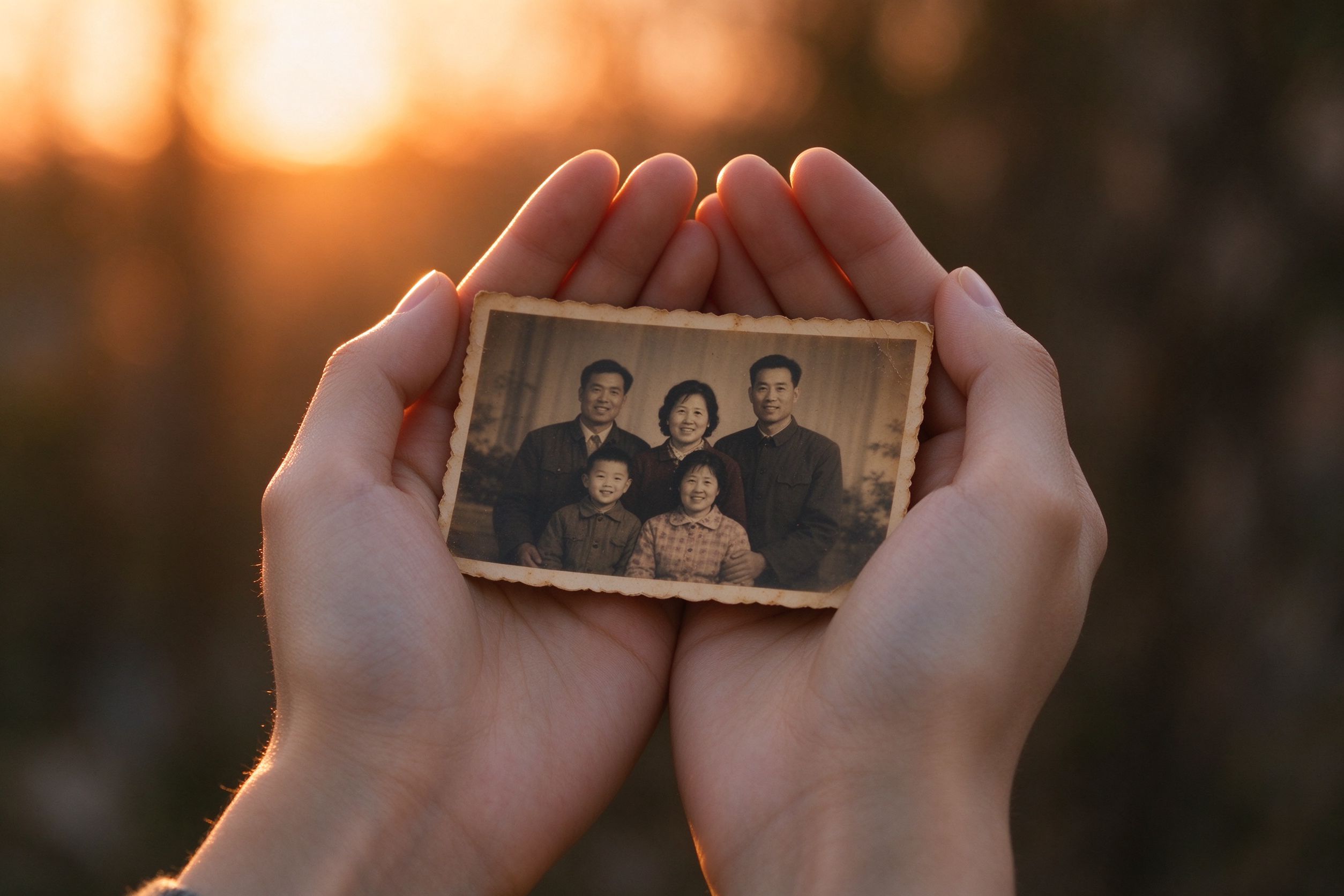
Privacy-First Photo Editing
Why resizing and editing locally beats cloud uploads.
为什么本地缩放编辑胜过上传云端。