AI Photo Restorer
A master-retoucher's eight-stage darkroom pipeline for faded, scratched and damaged old photos — free, private, and entirely in your browser.
以资深修图师的八阶段暗房管线,修复褪色、划痕与破损的老照片——免费、隐私安全,全程在浏览器本地完成。
Private by design — your photo is processed locally and never uploaded.Drop a photo here, or click to browse
Supported formats: JPG, PNG, WebP, GIF, BMP
Drag to compare
Tip: upload the largest scan you have — bigger input gives better results.
How It Works
The AI Photo Restorer runs a professional eight-stage darkroom pipeline — the same decision order a master retoucher would follow — built entirely from local image-science algorithms. Every stage executes on your own device using Float32-precision Canvas processing; your photo is never uploaded, stored, or seen by anyone.
The eight stages:
1 · Photo diagnosis
The photo is measured for color cast, fade, dynamic range, black/white points and grain level. Every later stage is driven by these readings, so each photo gets its own prescription.
2 · Expert white balance
A shades-of-gray illuminant estimate, fused with a highlight patch and skin-tone protection, lifts yellowed age stains without turning faces gray or pink.
3 · Scratch & dust repair
Scratches and dust are detected line-by-line with median evidence, then interpolated from their surroundings. A repeating-texture veto protects fabric weaves, hair, text strokes and fine detail from being erased.
4 · Edge-aware denoise
Chroma noise is cleaned separately from luma; grain is removed only in flat regions and preserved across edges. Denoise strength is automatically raised when a faded photo is about to be contrast-stretched.
5 · Tone curve with protected endpoints
Black and white points are set from deep percentiles and mapped through a gentle S-curve. Outputs never hit pure 0 or 255, so shadows keep depth and highlights retain texture — no crushed blacks or blown whites.
6 · Clarity & local contrast
A large-radius, low-amount local contrast stage opens hazy midtones and adds dimensionality, while a flat-region mask keeps skies and smooth skin clean.
7 · Natural vibrance
Faded low-saturation colors are boosted more than already-rich ones, with skin-tone damping. Colors come back believable instead of plastic; black-and-white photos skip this stage automatically.
8 · Smart sharpen & grain
Luma-only sharpening fires above a noise-adaptive threshold and is reduced in shadows where grain hides, so grain is never re-edged into halos. An optional unifying film-grain finish is available.
An honest note on "AI": because PhotoRevive AI runs entirely in your browser with no server and no API, this is a real, automatic image-science pipeline — but it cannot reconstruct a missing face or invent detail that was never captured. For severely damaged faces, start from a high-resolution scan and pair this tool with careful manual touch-up.
AI Photo Restorer 运行的是一套专业的八阶段暗房管线——与资深修图师的决策顺序一致——全部由本地图像科学算法构成。每一阶段都在你自己的设备上以 Float32 精度完成;照片永远不会被上传、存储或被人看到。
八个阶段:
1 · 照片诊断
先测量照片的色偏、褪色程度、动态范围、黑白场与颗粒水平。后续每个阶段都依据这些读数驱动,因此每张照片都会得到专属处方。
2 · 专业白平衡
采用灰影(shades-of-gray)光源估计,融合高光采样并带肤色保护,在去除岁月黄渍的同时,不会把人脸修成灰脸或粉脸。
3 · 划痕与尘点修复
以中值证据逐线检测划痕与尘点,再从周围像素插值修复。重复纹理否决机制可保护织物纹理、头发、文字笔画等细节不被误删。
4 · 保边降噪
色度噪点与亮度噪点分开处理;只在平坦区域去除颗粒,边缘处完整保留。当褪色照片即将被拉伸对比时,降噪强度会自动联动加深。
5 · 端点保护影调曲线
根据深层百分位设定黑白场,再通过柔和 S 曲线映射。输出永不到达纯 0 或纯 255,暗部保留层次、高光保留质感——不死黑、不惨白。
6 · 清晰度与局部对比
大半径、低强度的局部对比阶段,打通发灰的中间调、增强立体感;平坦区掩膜确保天空与光滑皮肤依然干净。
7 · 自然鲜艳度
对褪色的低饱和颜色增强更多、对已浓郁的颜色增强更少,并对肤色衰减处理。颜色回归真实而非塑料感;黑白照片会自动跳过此阶段。
8 · 智能锐化与颗粒
仅作用于亮度通道,在噪声自适应阈值之上触发,并在颗粒藏身的暗部自动减弱,绝不把颗粒重新勾边成光晕。另可选统一质感的胶片颗粒收尾。
关于「AI」的诚实说明:由于 PhotoRevive AI 完全在浏览器本地运行、没有服务器也不调用任何 API,它是真正全自动的图像科学管线——但无法重建缺失的人脸,也无法虚构从未被拍下的细节。严重破损的人脸请先准备高分辨率扫描件,再配合细致的手工精修。
How to Use
- Upload the best scan you haveDrag the photo into the box or click to browse. JPG, PNG, WebP, GIF and BMP are supported — a 300–600 DPI scan gives noticeably better results than a phone photo of a print.
- Read the diagnosis, pick a prescriptionAfter loading, the photo is automatically diagnosed (cast, fade, grain, exposure) and the Smart Restore settings are applied. Use the prescription buttons for heavily faded, scratched or grainy photos.
- Fine-tune by stageThe sliders mirror the pipeline: raise "Scratches & spots" for damaged prints, "Noise reduction" for grainy scans, "Tone restore" for fade, and dial "Smart sharpen" down if edges look crunchy.
- Download your restored photoExport as PNG for the highest quality archive copy, JPG for sharing, or WebP for the smallest file size.
- 上传你手上最好的扫描件将照片拖入或点击选择。支持 JPG、PNG、WebP、GIF、BMP——300–600 DPI 的扫描件效果明显好于翻拍照片。
- 看诊断、选处方照片加载后会自动诊断(色偏、褪色、颗粒、曝光)并应用智能修复参数。褪色、划痕、噪点重的照片可直接点对应的处方按钮。
- 按阶段微调滑杆与修复管线一一对应:破损严重调「划痕与尘点」,颗粒重调「降噪」,发灰调「影调恢复」,边缘发硬就降低「智能锐化」。
- 下载修复结果存档建议导出 PNG(质量最高),分享用 JPG,追求小体积用 WebP。
FAQ
Is my photo uploaded to a server?
Can it restore torn or missing parts of a photo?
Why does my result look soft?
Is it really free and unlimited?
What is the best format to download?
我的照片会被上传到服务器吗?
它能修复照片上撕裂、缺失的部分吗?
为什么我的结果看起来发虚?
真的免费且不限次数吗?
下载时选什么格式最好?
Related Tools
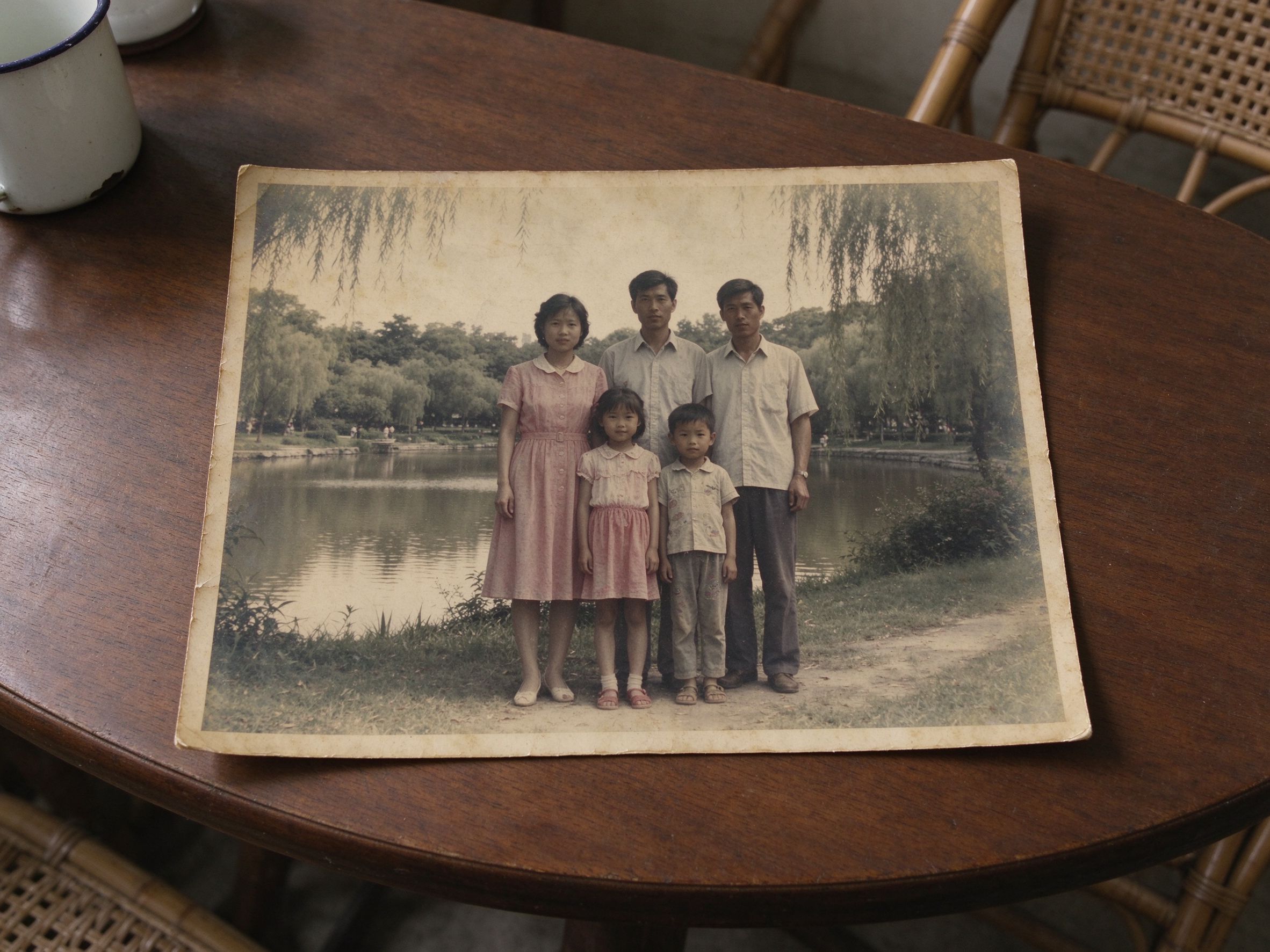
Faded Photo Fixer
Revive washed-out colors and low contrast in decades-old prints.
恢复数十年老照片中褪去的色彩与对比度。
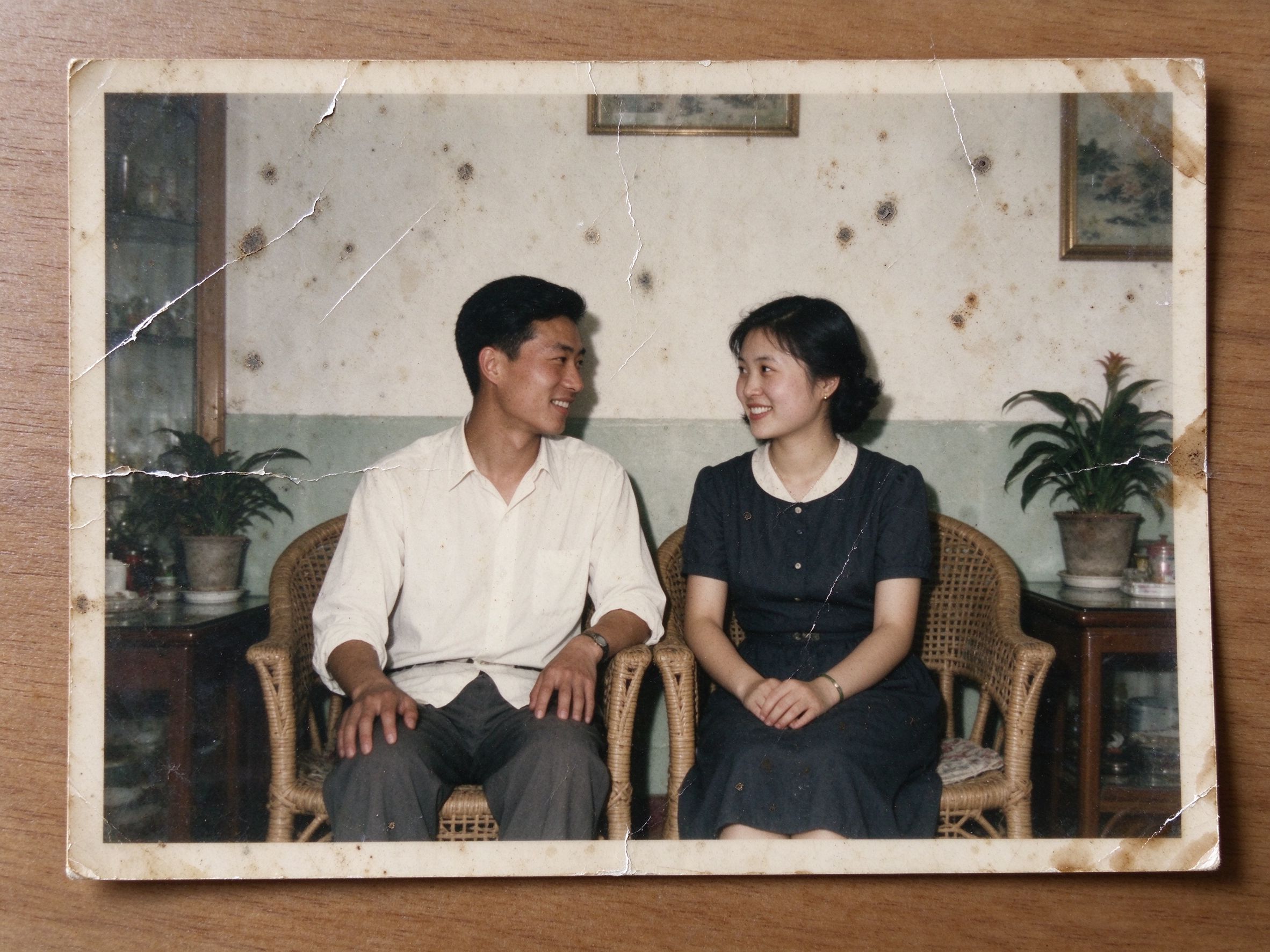
Scratch & Spot Remover
Smooth away scratches, dust and stains with smart local smoothing.
用智能局部平滑消除划痕、灰尘与污渍。
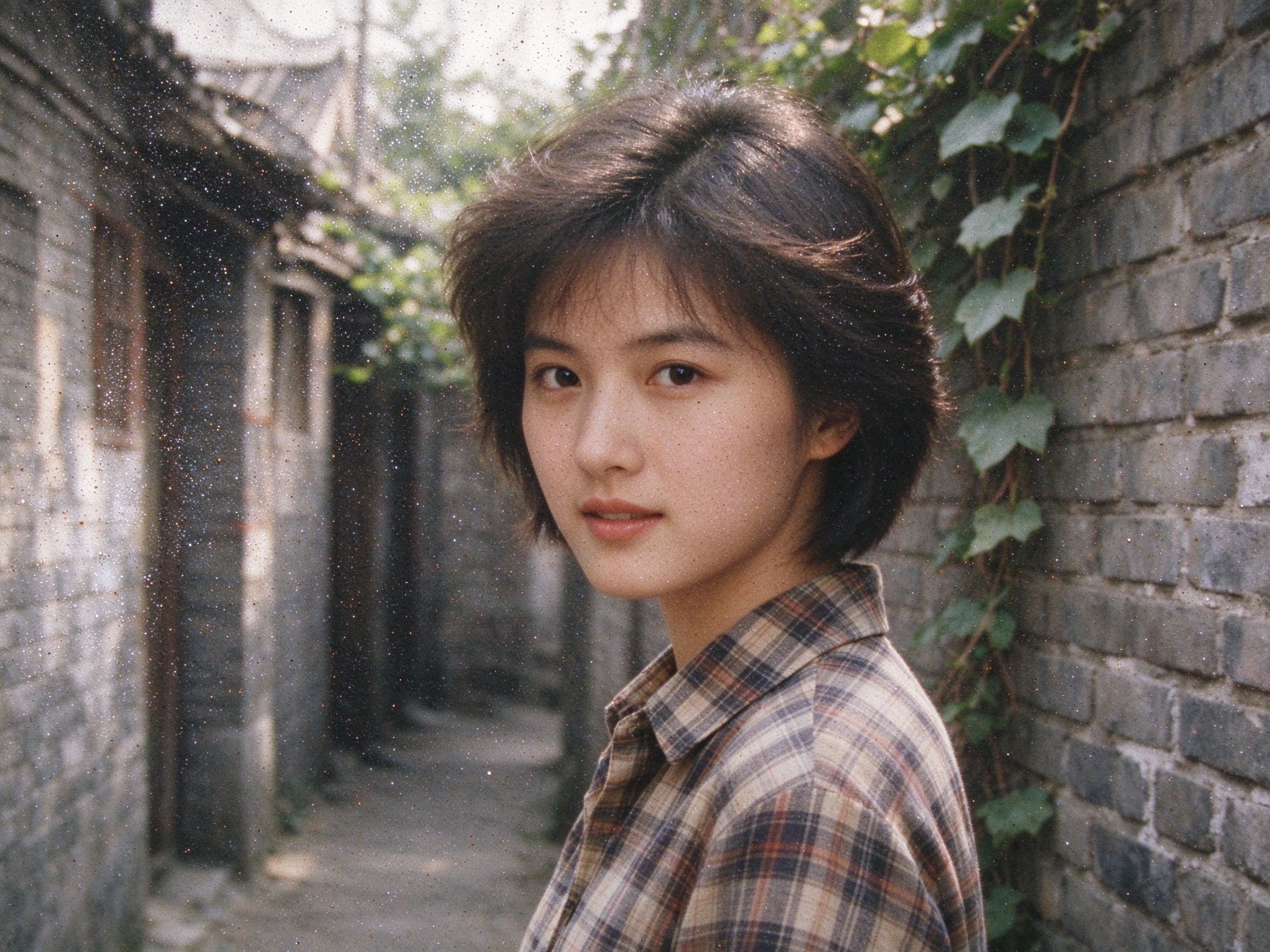
Photo Denoiser
Remove film grain and digital noise while keeping real detail.
去除胶片颗粒与数码噪点,同时保留真实细节。
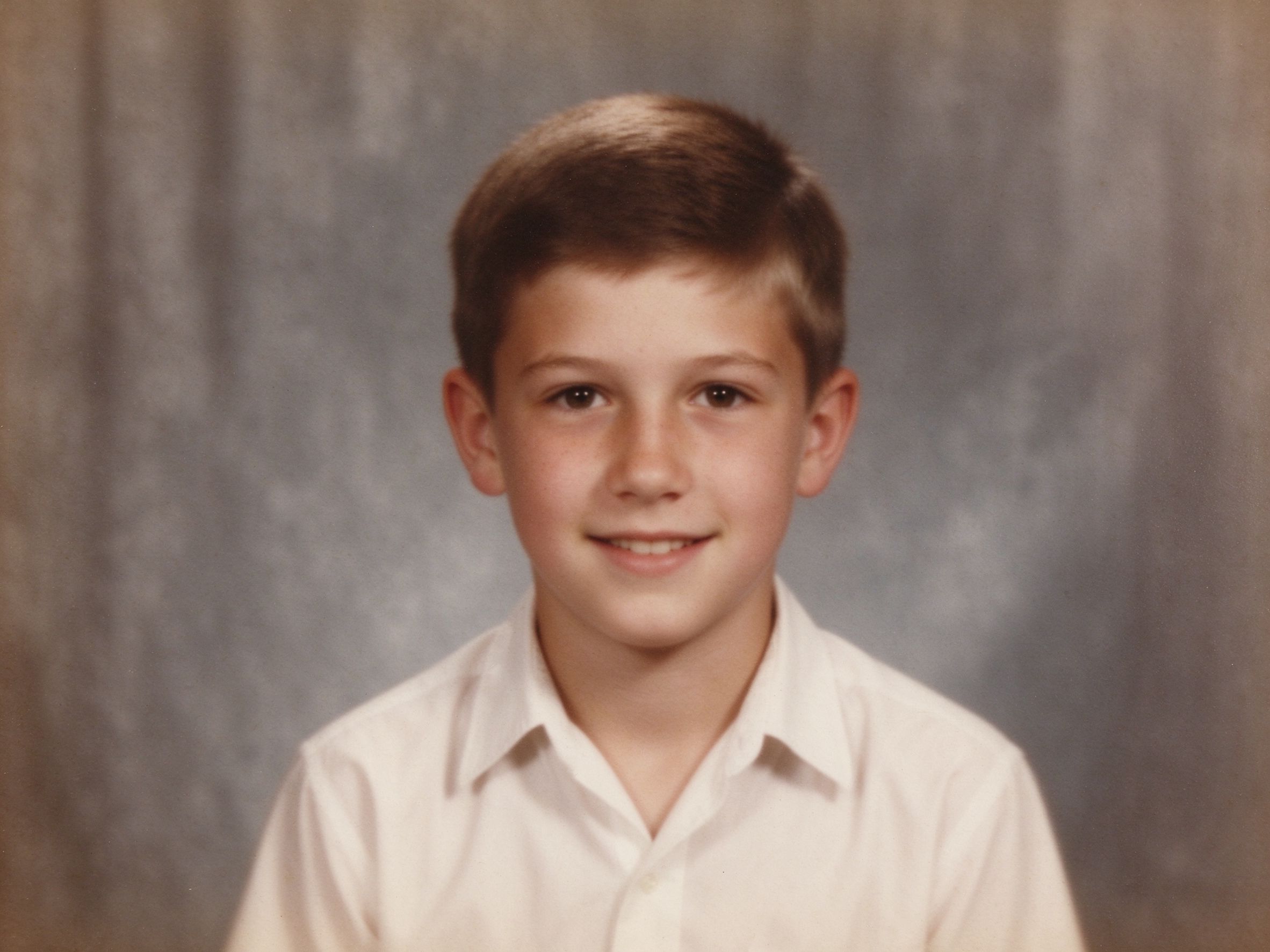
Photo Sharpener
Recover crisp edge detail from soft, out-of-focus old photos.
从发虚失焦的老照片中恢复清晰锐利的边缘细节。
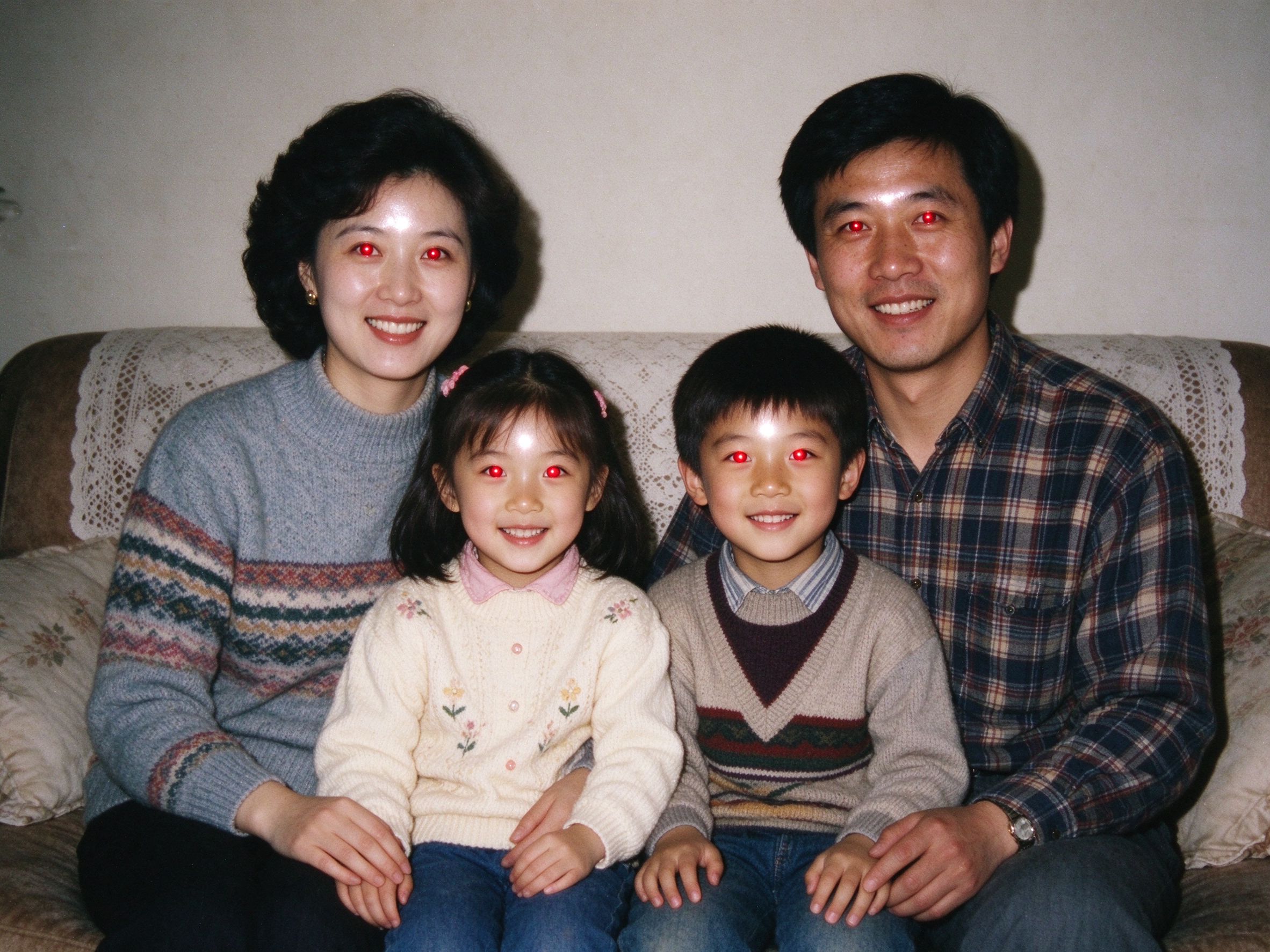
Red Eye Remover
Fix red eyes in old flash photos with a single click on the eye.
点击眼睛即可修复老式闪光灯照片中的红眼。
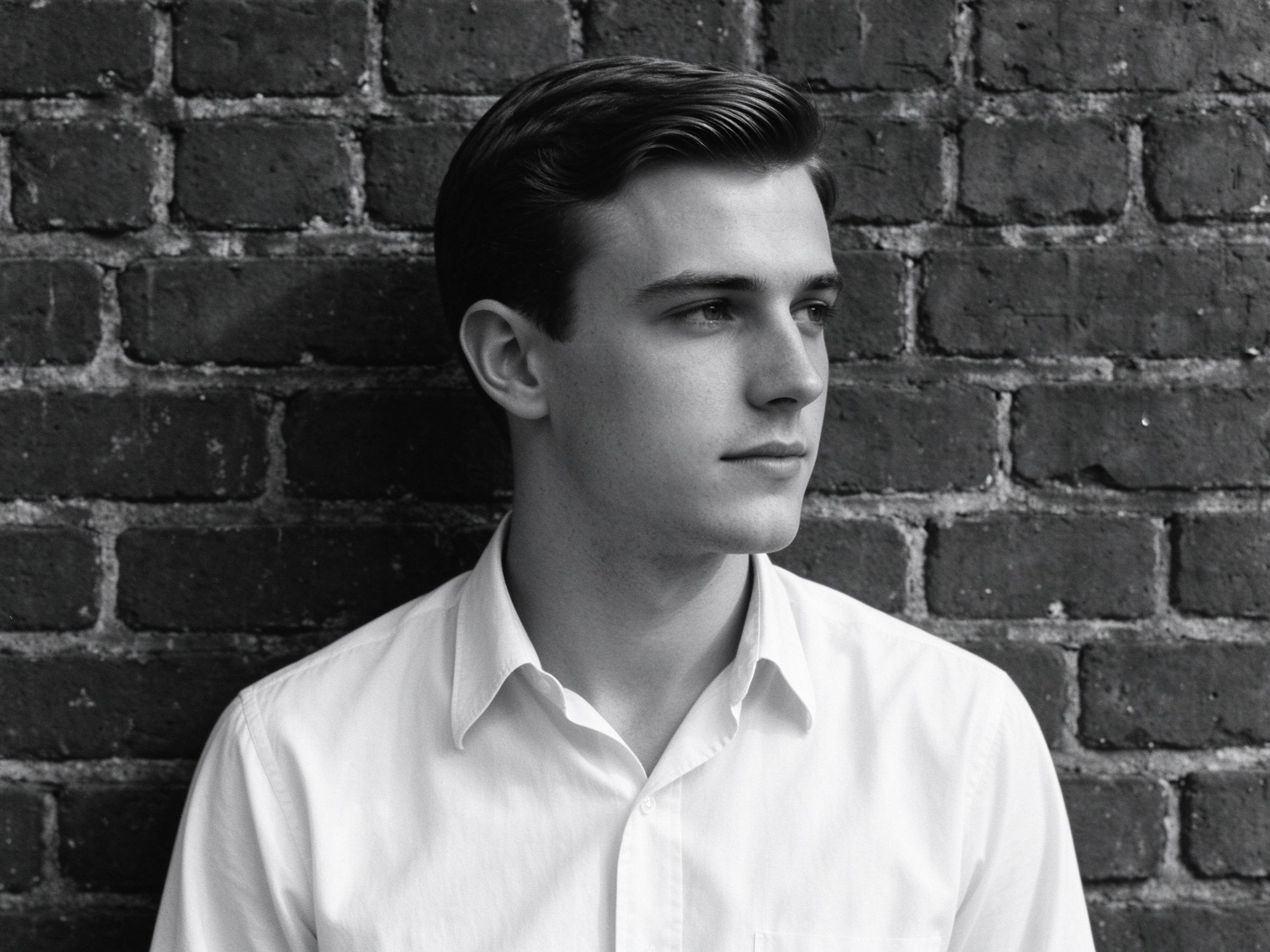
Black & White Converter
Beautiful monochrome conversion with full channel control.
带完整通道控制的优美黑白转换。
Related Guides
How to Restore Old Photos of Your Grandparents
A complete step-by-step guide to reviving family portraits.
修复祖辈肖像照的完整分步指南。
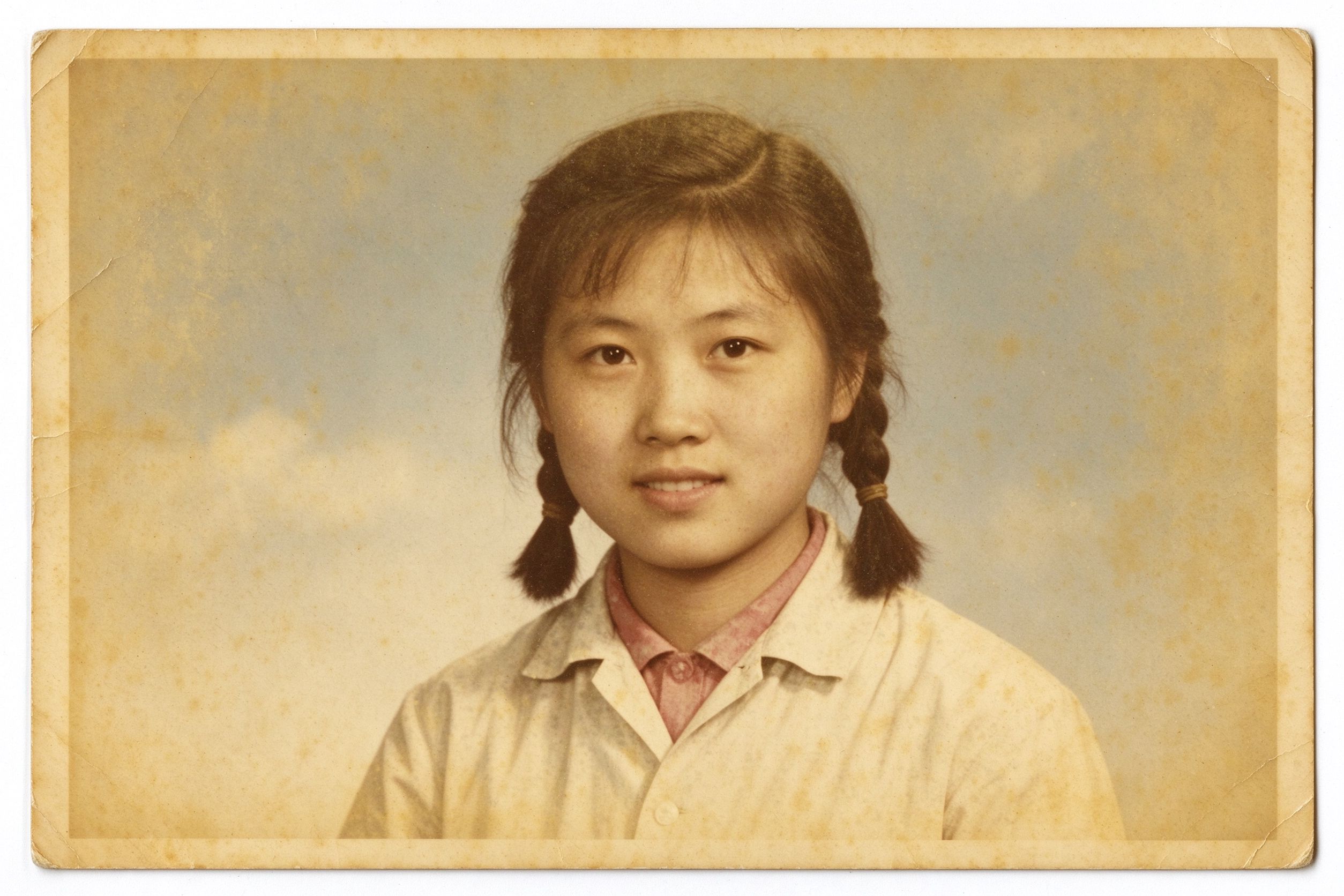
Faded Photo Restoration: Color & Contrast
Understand why photos fade and how to bring color back safely.
理解照片褪色的原因,以及如何安全地恢复色彩。
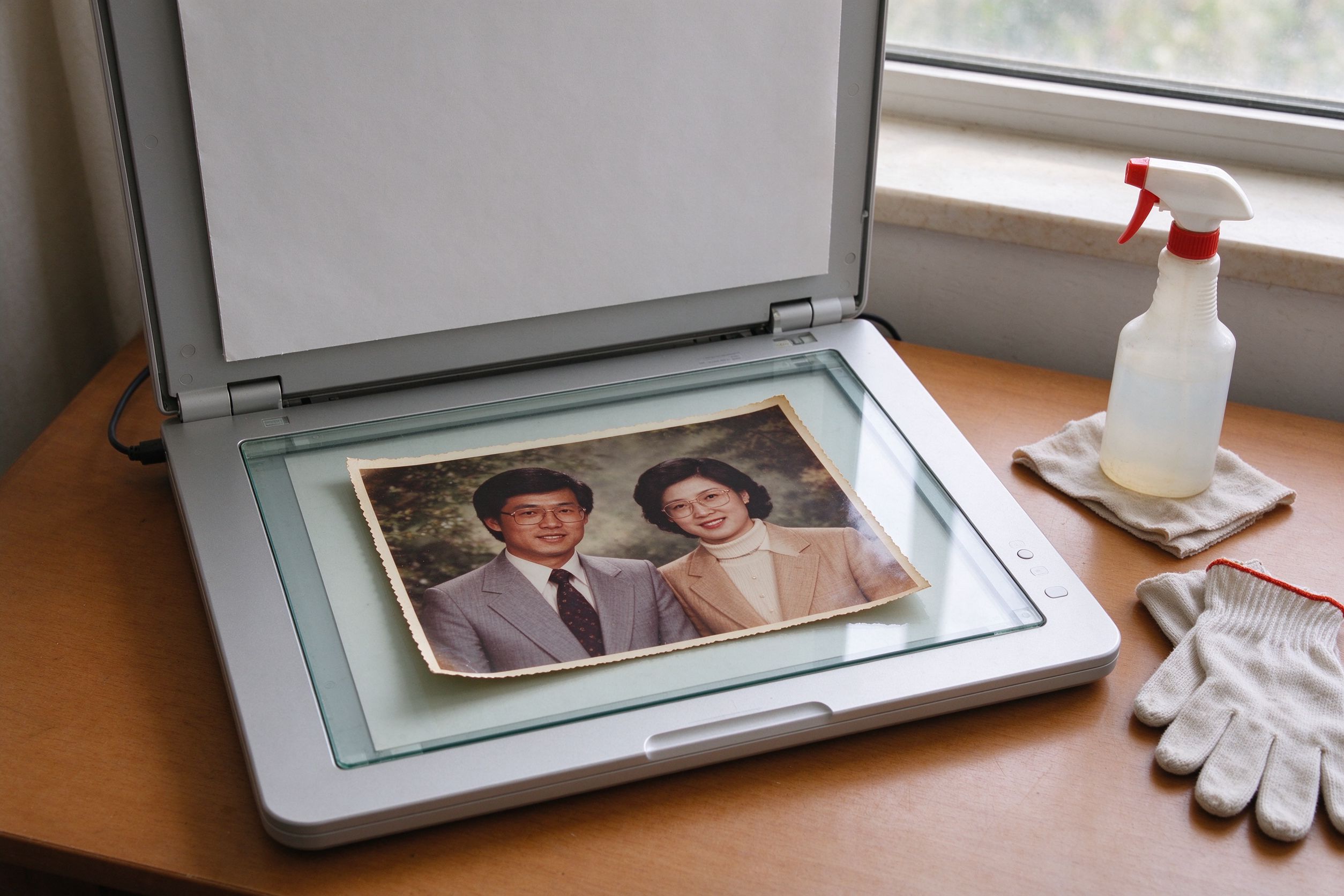
Scanning Old Photos: Best Settings & Prep
Get the best digital copy possible before you start restoring.
在开始修复前,先获得最好的数字拷贝。
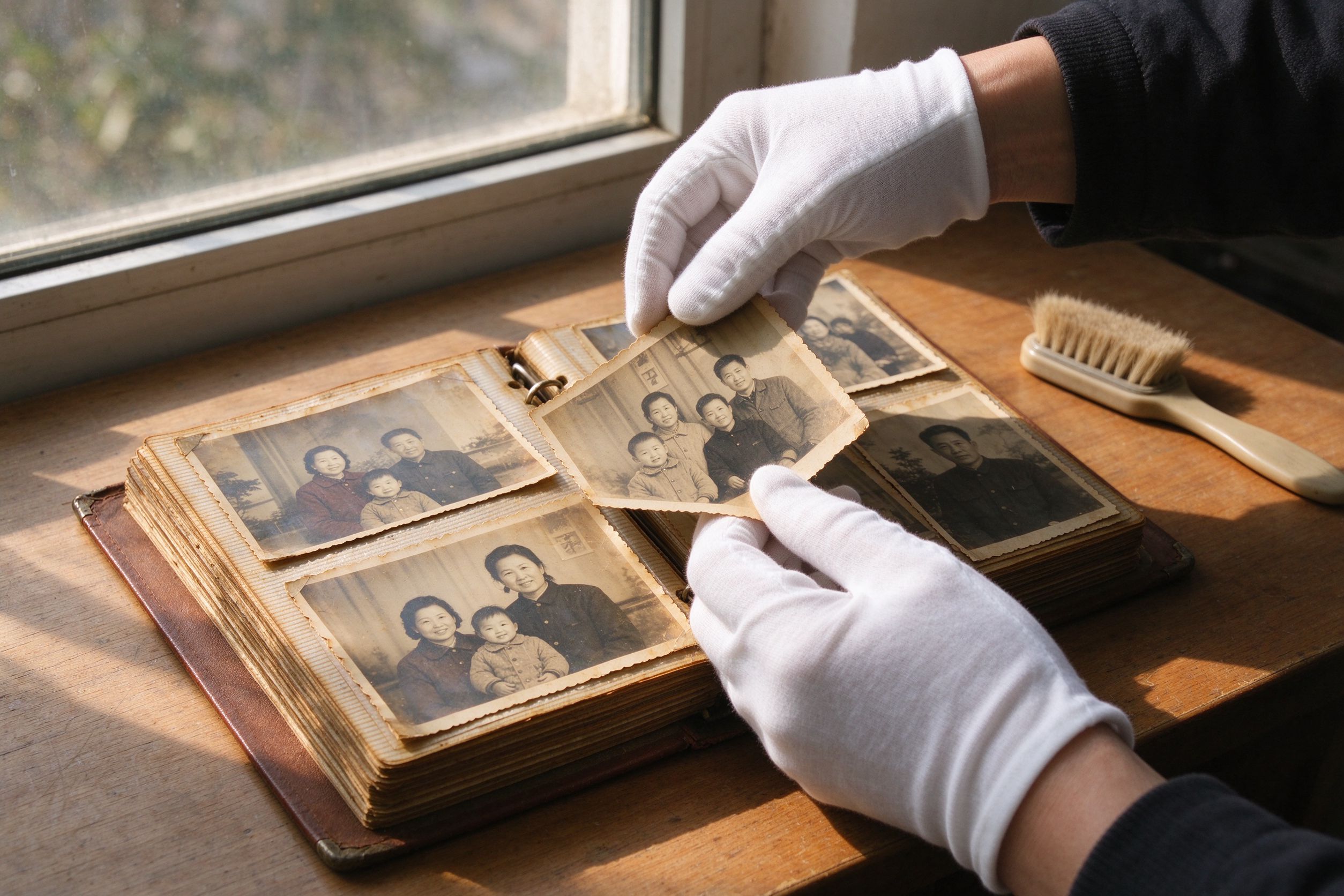
10 Photo Care Tips to Preserve Memories
Keep your physical and digital photos safe for the next generation.
让纸质与数字照片世代相传的保养技巧。