Photo Cropper
Trim away unwanted borders, scan edges and clutter with a draggable crop box — then export exactly the frame you want, free and private.
用可拖拽的裁切框去掉多余边框、扫描黑边与杂物——导出你想要的那一帧,免费且私密。
Private by design — your photo is processed locally and never uploaded.Drop a photo here, or click to browse
Supported formats: JPG, PNG, WebP, GIF, BMP
Drag to compare
Tip: a 1:1 crop suits avatars and social posts; 4:3 and 3:2 match classic photo paper; 16:9 fits widescreen and phone wallpapers.
提示:1:1 适合头像与社交配图;4:3、3:2 贴合传统相纸;16:9 适合宽屏与手机壁纸。
How It Works
The Photo Cropper reads your image into an offscreen canvas and lets you drag a selection rectangle directly on the preview. When you export, the tool copies only the pixels inside that rectangle into a brand-new image — the cropped edges are discarded, not blurred or compressed away.
Real pixel crop
Only the selected rectangle is kept. There is no resampling, stretching or quality loss from cropping itself — a 2000px wide crop stays 2000px wide.
Ratio presets
Lock the box to 1:1, 4:3, 3:2 or 16:9 so your export matches social feeds, photo paper or screens. "Free" lets you drag any shape.
Handles on every side
Drag any of the four corners or four edge handles, or move the whole box by dragging inside it. A rule-of-thirds overlay guides composition.
Fully local
Everything runs in your browser with the Canvas API. The photo never touches a server — even a sensitive family portrait stays on your device.
An honest note: cropping only removes pixels outside your box. It cannot recover detail that is already outside the frame, and it does not sharpen or repair the remaining area — use the restorer, denoiser or sharpener tools on the cropped result if you want it improved.
Photo Cropper 把你的图片读入离屏画布,并让你直接在预览上拖动画选框。导出时,工具只把该矩形内的像素复制进一张全新图片——框外的部分直接丢弃,而不是模糊或压缩掉。
真正的像素裁切
只保留选中的矩形。裁切本身不做重采样、拉伸或画质损失——2000 像素宽的裁切结果仍是 2000 像素宽。
比例预设
把框锁定为 1:1、4:3、3:2 或 16:9,让导出贴合社交信息流、相纸或屏幕。「自由」可拖任意形状。
四边八手柄
拖动任意角或边的手柄调整大小,在框内拖动可整体移动。三分构图线辅助取景。
完全本地
一切都在浏览器中通过 Canvas API 完成,照片绝不接触服务器——哪怕是敏感的家庭肖像也只留在你的设备上。
诚实说明:裁切只会去掉框外像素,无法找回画框之外已经没有的细节,也不会增强剩余区域——如需改善画质,请对裁切结果再使用修复、降噪或锐化工具。
How to Use
- Upload your photoDrag it into the box or click to browse. A higher-resolution scan gives you more room to crop without going pixelated.
- Choose a ratio (optional)Pick Free, 1:1, 4:3, 3:2 or 16:9 to lock the box proportions before you frame the shot.
- Drag the crop boxResize via the corner and edge handles, move it by dragging inside, and line the subject up with the rule-of-thirds lines.
- Check the resultDrag the compare handle to reveal the cropped output on the right, then download as PNG, JPG or WebP.
- 上传照片拖入或点击选择。分辨率越高的扫描件,裁切时就越有余量、不易发虚。
- 选择比例(可选)选「自由 / 1:1 / 4:3 / 3:2 / 16:9」,先锁定框的比例再取景。
- 拖动裁切框用角与边手柄调整大小,在框内拖动移动位置,让主体对齐三分线。
- 查看结果拖动对比滑块在右侧查看裁切输出,然后下载为 PNG、JPG 或 WebP。
FAQ
Does cropping reduce my photo's quality?
Why would I lock a ratio like 1:1 or 16:9?
Can I undo the crop?
Is my photo uploaded while I crop?
What if my crop box is too small?
裁切会降低照片质量吗?
为什么要锁定 1:1 或 16:9 这样的比例?
可以撤销裁切吗?
裁切时我的照片会被上传吗?
如果裁切框太小怎么办?
Related Tools
Photo Resizer
Scale a photo to exact pixels or a percentage, with aspect lock.
按精确像素或百分比缩放照片,支持锁定纵横比。
Perspective Corrector
Straighten a skewed scan by dragging its four corners.
拖动四个角点,校正倾斜扫描件的透视。
Vignette Effect
Draw the eye to the center with a soft, adjustable vignette.
用柔和可调的暗角把视线引向画面中心。
Vintage Frame
Wrap your photo in a polaroid-style border with a caption.
给照片加上拍立得风格边框与文字说明。
Image Compressor
Shrink file size for web and email while watching the savings.
为网页与邮件压缩体积,实时查看节省比例。
Batch Converter
Convert many photos to JPG, PNG or WebP at once, locally.
在本地批量把多张照片转为 JPG、PNG 或 WebP。
Related Guides
Creative Vintage Effects
Vignette, film and frame ideas to make restored photos feel timeless.
用暗角、胶片与边框让修复后的照片更有年代感。
Scanning Old Photos: Best Settings
Scan at the right DPI so cropping and zooming stay sharp.
用合适的 DPI 扫描,裁切与放大后依然清晰。
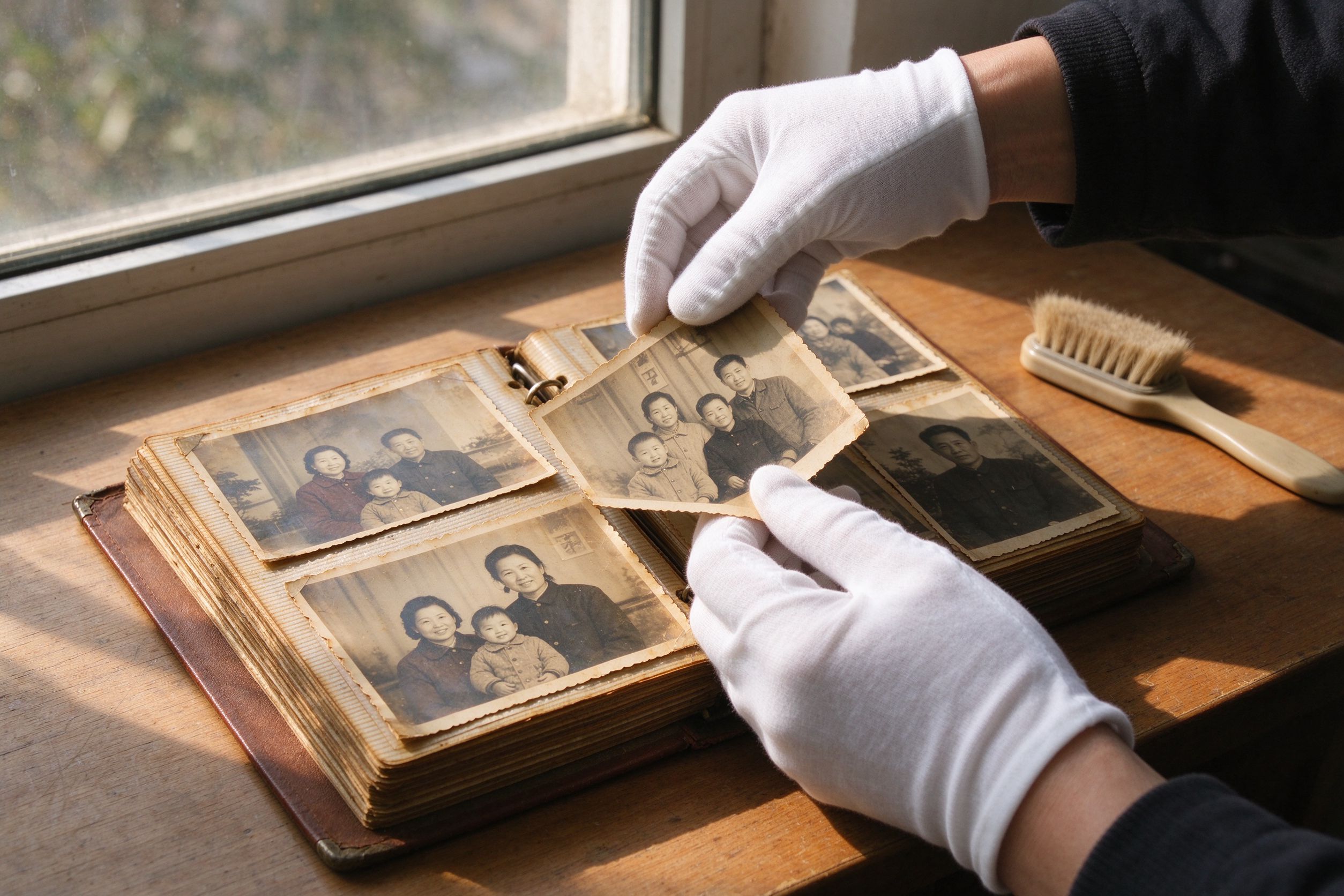
10 Photo Care Tips
Preserve your physical and digital photos for the next generation.
让纸质与数字照片世代相传的保养技巧。
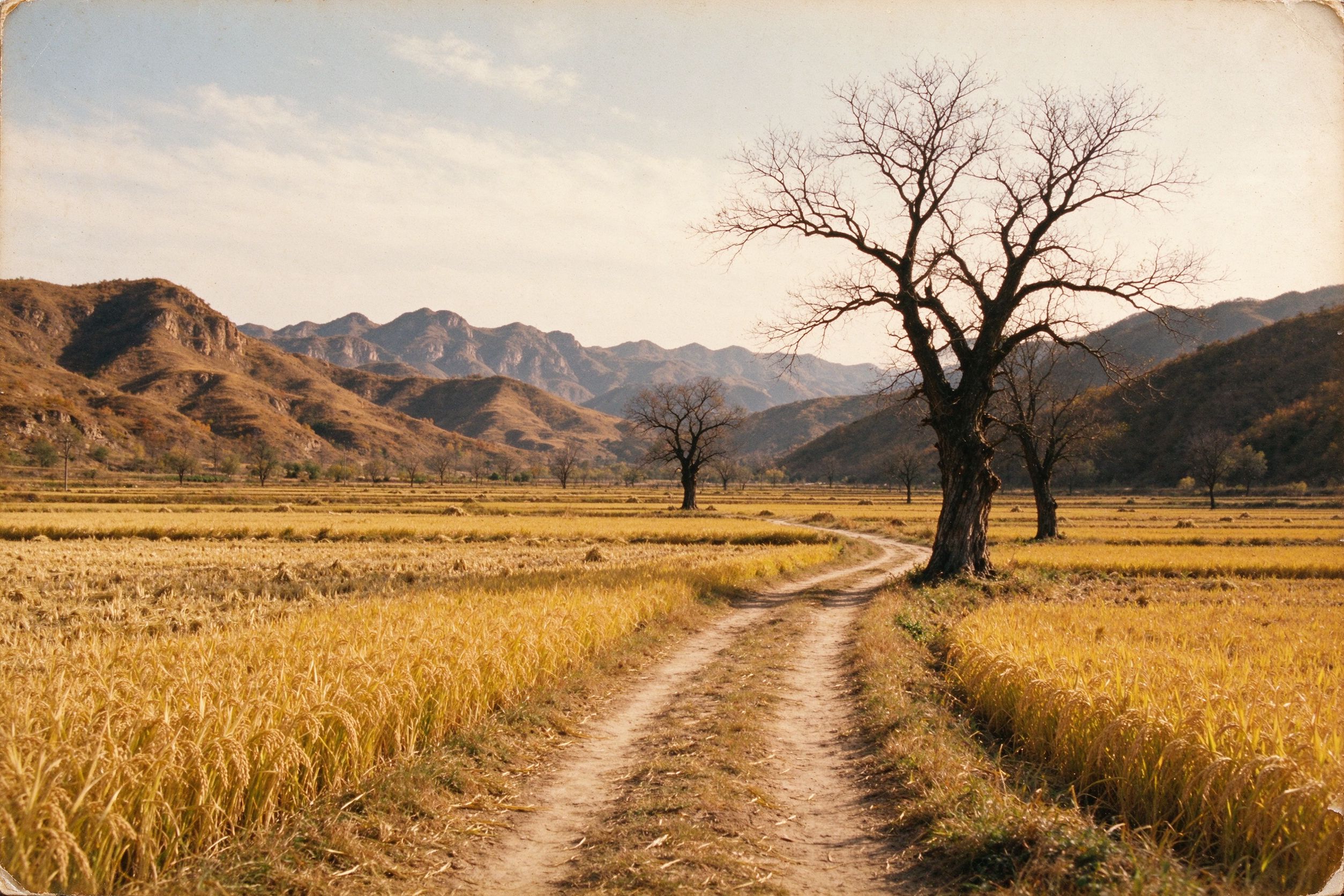
Old Landscape Photos
Bring scenery back to life and frame it for a widescreen view.
让旧风景照重现生机,并按宽屏取景构图。