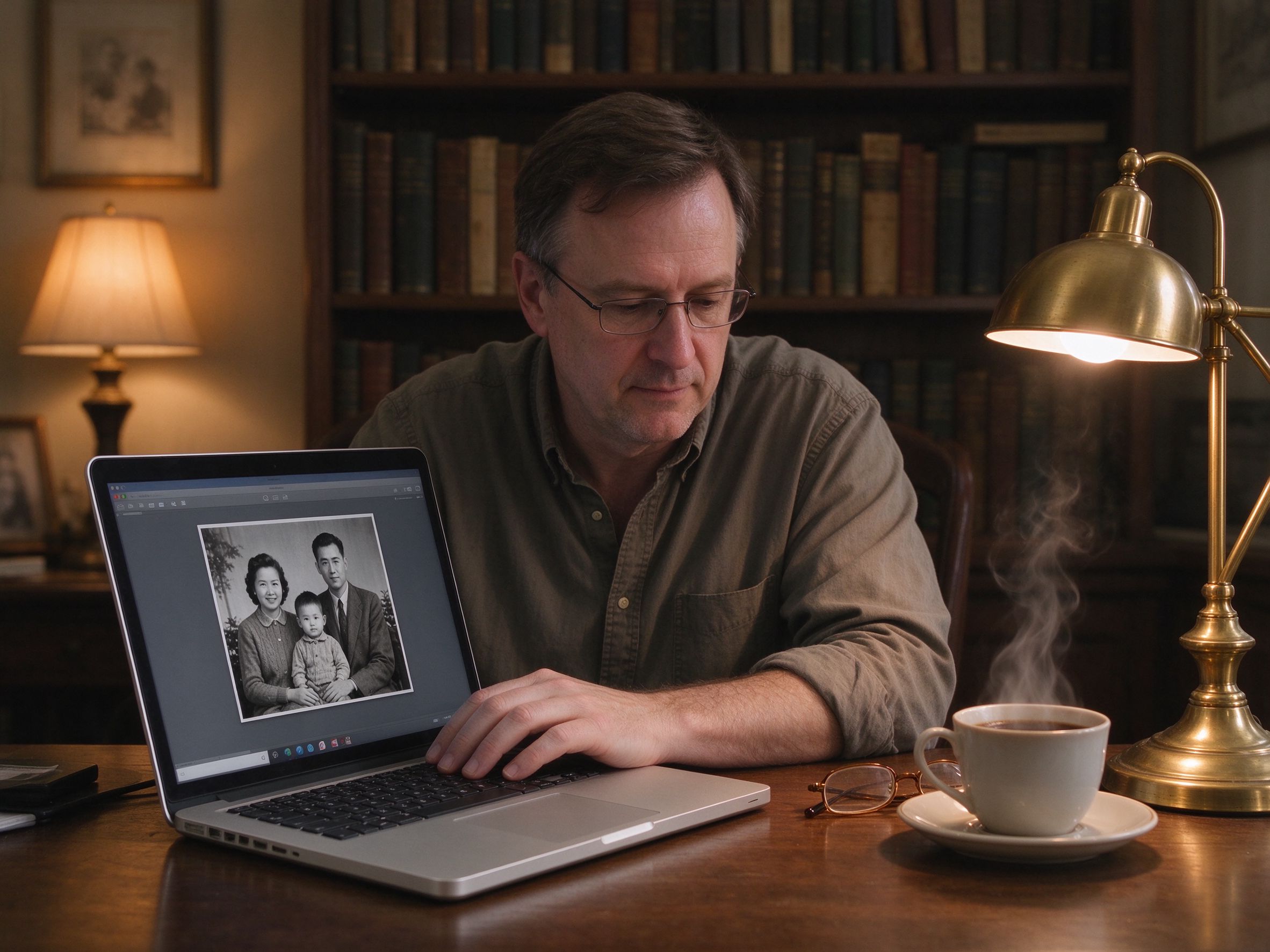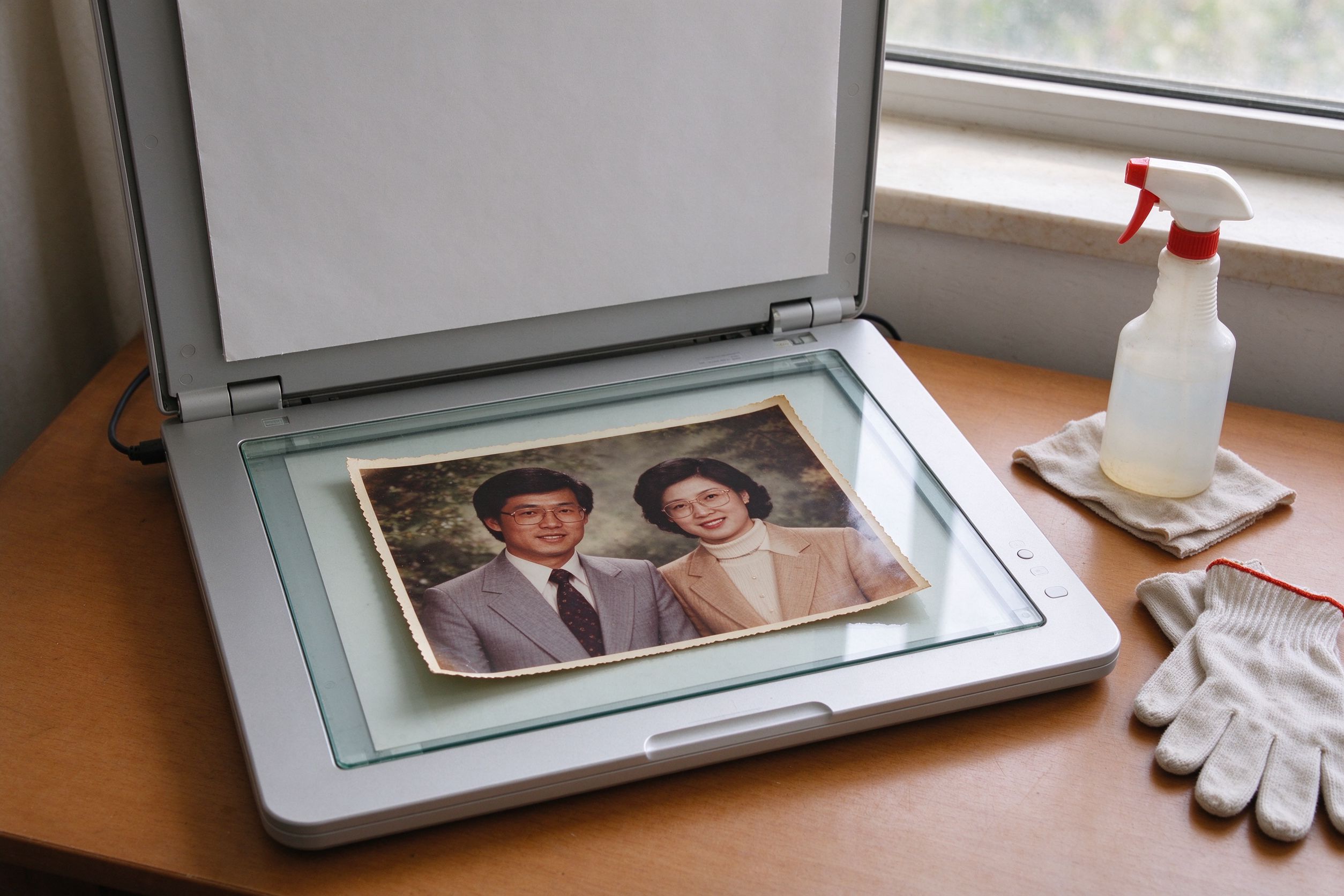
An old family photo is not just an image file. It contains people, homes, addresses visible in the background, handwritten notes, and sometimes documents or children. Yet when people want to restore one, the default instinct is to upload it to the first free online editor they find — often without reading what happens to the file next. That trade-off deserves more thought, because the photo you are fixing may be the most private thing you upload all year.
This guide explains what local, in-browser processing actually means, why it matters for family photos, the real risks of upload-based editors, and the habits that keep your memories on your own device. It is also a statement of how PhotoRevive is built.
Why photo privacy is worth caring about
Photos carry metadata and context that most people never think about. A digital photo can contain the exact date and time it was taken, the camera, and — on phone photos — the GPS location. Old scanned photos may reveal a street number on a letter in the background, a school crest, or a child's full name written on the back. When you upload such a photo to a web service, you are handing over not just pixels, but this surrounding context.
The concern is not necessarily malice. Most reputable services do not intend to expose your grandmother's portrait. The issue is that once a file leaves your device, you lose control of it: it may be cached, logged, used to improve machine-learning models, retained on a server, exposed in a breach, or shared with advertisers. The legal right to demand deletion depends on the service and your jurisdiction, and it is rarely simple. For irreplaceable family memories, the safest approach is to never send them in the first place.
How in-browser local processing works
"Local processing" sounds like a marketing phrase, but it describes a concrete technical difference. When you use a traditional online editor, your browser sends the image over the internet to a remote server, which does the work and sends the result back. When you use a local, browser-based tool like PhotoRevive, the work happens on your own computer.
Here is how it works in practice. When the AI Photo Restorer loads, your browser downloads the small JavaScript algorithm library once. When you drop in a photo, the file is read directly into memory on your device. Every operation — white balance, contrast, denoising, scratch smoothing, sharpening — runs on your CPU or GPU through the browser's Canvas engine. The pixels are transformed in place and the result is drawn back to the screen. When you click download, the browser writes a new file to your own disk. At no point is the image transmitted to a server.
You can verify this yourself: open your browser's developer tools, go to the Network tab, and watch what loads while you edit. You will see the page and its fonts, but no upload of your image file. This is the practical meaning of "your photos never leave your device."
What upload-based online editors do
Upload-based editors are not all the same, and many are genuinely useful. But it is worth reading their privacy policies before you upload something sensitive, because the fine print usually answers the important questions:
- Do they store your image, and for how long? Some keep files for hours or days to process them; others retain them indefinitely.
- Can they use your images to train or improve their AI models? A surprising number of "AI photo" services reserve the right to use uploaded photos for model training unless you opt out.
- Who do they share data with? Analytics providers, ad networks, and cloud infrastructure partners may all see metadata.
- Do they require an account? An account ties your edits, your email and your identity to the photos you process.
None of this makes these tools bad. But for a once-in-a-generation family photo, the calculus changes: the small convenience of a familiar upload tool is not worth sending a private image to a server whose retention policy you have not checked. A local tool gives the same editing result without that step.
What PhotoRevive does — and does not — do
Being honest about our own design is part of the value. PhotoRevive is a purely front-end site: there is no account, no upload endpoint, and no photo database. When you restore a photo, the pixels stay on your device and the result is downloaded directly by your browser. We do not see, store, or transmit your images.
Two honest caveats. First, the site does load standard web elements — fonts, the page itself, and (when enabled) advertising scripts. These see that you visited the site, not what your photo contains. Second, our restoration uses deterministic local image algorithms, not a cloud AI that invents missing faces. This is a privacy advantage: there is no remote model that ever receives your image. It is also a quality boundary, which we state plainly in each tool's "How it works" section.
You can read the full details in our Privacy Policy. The short version: free, unlimited editing, with your photos never leaving your device.
Practical privacy habits for photo editing
Local-first editing is the foundation, but a few habits make the whole workflow safer:
- Edit before you share. Do your restoration in a local tool, then only upload the finished, cropped image to a place you actually want it — never the raw scan.
- Crop out sensitive backgrounds. Use the Photo Cropper to remove letters, addresses or identifying details before any image leaves your device.
- Strip metadata when sharing online. When you export a web copy through the Image Compressor, you produce a clean JPEG; for extra safety, re-save it so location and camera data are not embedded.
- Keep the master local. Store your restored PNG master on your own drive and an offline backup, not on a random cloud album you do not control.
- Batch locally too. Convert a whole album with the Batch Converter in your browser — every file is processed on your device, so a box of scans never touches a server.
- Check before you upload. Any time you choose a service that does upload, read whether it stores or trains on your images, and prefer ones that delete after processing.
These habits fit naturally with good preservation practice. We cover storage and backups in the photo care guide, and the scanning side in the scanning guide. Privacy and preservation are the same project: keeping your memories under your control.
Privacy FAQ
If the tool runs in my browser, can anyone see my photo? No. Because the image is never uploaded, there is no request that carries it. The only network activity is loading the page, fonts and any ads you see — none of which receive your picture.
Do I need to create an account to use PhotoRevive? No. There is no sign-up, no email and no login. You open a tool, drop in a photo, and download the result.
Does PhotoRevive use my photos to train an AI? No. There is no remote AI and no training pipeline; the algorithms run entirely on your device. There is nothing for your image to be used for off your machine.
What about my "Saved" pages and favorites? The saved-pages list lives in your browser's local storage, on your own device. It stores links and thumbnails of pages, not your photos, and it never leaves your browser.
Is local processing less powerful than cloud AI? For restoration, our local algorithms handle fading, scratches, grain, sharpening and color well. They cannot invent missing faces or rebuild torn-away detail — a boundary we state openly. For that, local privacy is the better trade than a cloud model that has already seen your photo.
一张老家庭照片不只是一个图像文件。它里面有人、有房子、背景里可能有门牌号、手写便条,有时还有证件或孩子。然而当人们想修复它时,本能反应往往是把它上传到第一个搜到的免费在线编辑器——通常根本没去读接下来文件会怎样处理。这个取舍值得多想一想,因为你要修的这张照片,可能是你一整年上传过的最私密的东西。
本指南解释本地浏览器处理到底意味着什么、它对家庭照片为何重要、上传式编辑器的真实风险,以及让记忆留在你自己设备上的那些习惯。它同时也是一份 PhotoRevive 如何构建的声明。
一、为什么照片隐私值得在意
照片携带大多数人从不留意的元数据与上下文。一张数字照片可能包含拍摄的确切日期时间、相机型号,手机拍的照片还可能带 GPS 位置。扫描的老照片可能露出背景里信件上的门牌号、校徽,或写在背面的孩子全名。当你把这样一张照片上传到网络服务,你交出的不仅是像素,还有这层上下文。
担心的未必是恶意。多数正规服务并不打算暴露你祖母的肖像。问题在于,文件一旦离开你的设备,你就失去了对它的控制:它可能被缓存、记录、用于改进机器学习模型、留在服务器上、在数据泄露中暴露,或分享给广告商。要求删除的法律权利取决于服务和你所在的司法辖区,而且往往并不简单。对于不可替代的家庭记忆,最安全的做法是一开始就不把它发出去。
二、浏览器本地处理是如何工作的
"本地处理"听着像营销话术,但它描述的是一个具体的技术差别。用传统在线编辑器时,你的浏览器把照片通过互联网发到远程服务器,服务器处理完再把结果发回。用像 PhotoRevive 这样的本地浏览器工具时,工作发生在你自己的电脑上。
实际是这样运作的。当 AI 照片修复加载时,你的浏览器只下载一次那个小小的 JavaScript 算法库。当你拖入一张照片,文件被直接读入你设备的内存。每一步操作——白平衡、对比度、降噪、划痕平滑、锐化——都通过浏览器的 Canvas 引擎在你的 CPU 或 GPU 上运行。像素就地变换,结果再画回屏幕。点下载时,浏览器把一个新文件写到你自己的磁盘。整个过程中,图像从不被传到服务器。
你可以亲自验证:打开浏览器开发者工具,切到 Network(网络)标签,边编辑边观察加载了什么。你会看到页面和字体,但没有任何上传你图片的请求。这就是"你的照片从不离开你的设备"的实际含义。
三、上传式在线编辑器会做什么
上传式编辑器并非都一样,很多确实好用。但在你上传敏感内容之前,值得读一读它们的隐私政策,因为细则通常会回答那些关键问题:
- 它们会不会保存你的图片、保存多久?有的为处理而保留几小时或几天,有的无限期保留。
- 它们能不能用你的图片训练或改进 AI 模型?相当多的"AI 修图"服务保留将上传照片用于模型训练的权利,除非你主动退出。
- 它们与谁共享数据?分析服务商、广告网络和云基础设施合作方都可能看到元数据。
- 它们是否要求注册账号?账号会把你的修改、邮箱和身份与你处理的照片绑定。
这些都不意味着这些工具不好。但对于一张几代人一遇的家庭照片,算法就变了:一个你没看过其保留政策的服务器,不值得为了熟悉上传工具那点方便而把私密照片发过去。本地工具能给你同样的编辑结果,却没有这一步。
四、PhotoRevive 做什么——不做什么
诚实说明我们自己的设计,正是价值的一部分。PhotoRevive 是一个纯前端站点:没有账号、没有上传接口、没有照片数据库。你修复照片时,像素留在你的设备上,结果由你的浏览器直接下载。我们看不到、不存储、也不传输你的图像。
两点诚实的保留。第一,站点会加载标准网页元素——字体、页面本身,以及(开启时)广告脚本。它们知道你访问了本站,但不知道你的照片内容是什么。第二,我们的修复使用确定性的本地图像算法,而不是会凭空编造缺失人脸的云端 AI。这是隐私优势:没有任何远程模型接收过你的图像;它也是质量边界,我们在每个工具的"原理说明"里都写明了。
完整细节见我们的隐私政策。简短版:免费、不限次数,你的照片从不离开你的设备。
五、照片处理的实用隐私习惯
本地优先是基础,几个习惯能让整个工作流更安全:
- 先编辑,再分享。在本地工具里完成修复,然后只把修好、裁好的成品上传到你真正想放的地方——绝不传原始扫描件。
- 裁掉敏感背景。用 照片裁剪在任何图片离开你的设备前,去掉信件、地址或可识别细节。
- 网上分享时剥离元数据。用 图片压缩导出网页副本时,得到的是干净的 JPEG;为更保险,再另存一次,使位置和相机数据不被嵌入。
- 母版留在本地。把修复好的 PNG 母版存在你自己的硬盘和一份离线备份里,而不是某个你无法掌控的随机云相册。
- 批量也在本地做。在浏览器里用 批量转换处理整本相册——每个文件都在你的设备上处理,一箱扫描件从不接触服务器。
- 上传前先确认。每当你选择一个确实会上传的服务,先看它是否存储或用你的图片训练,并优先选处理后即删的服务。
这些习惯与良好的保存实践天然契合。存储与备份见照片保养指南,扫描环节见扫描指南。隐私与保存是同一件事:让记忆始终在你的掌控之中。
六、隐私常见问题
工具在我浏览器里运行,别人能看到我的照片吗?不能。因为图像从不上传,就没有携带它的请求。唯一的网络活动是加载页面、字体和你看到的广告——它们都收不到你的图片。
用 PhotoRevive 需要注册账号吗?不需要。没有注册、没有邮箱、没有登录。打开工具、拖入照片、下载结果即可。
PhotoRevive 会用我的照片训练 AI 吗?不会。没有远程 AI,也没有训练管线;算法完全在你的设备上运行。你的图像在你机器之外没有可被利用的地方。
我的"收藏"页面和书签呢?收藏列表存在你浏览器的本地存储里,就在你自己的设备上。它存的是页面链接和缩略图,不是你的照片,也从不离开你的浏览器。
本地处理是不是不如云端 AI 强大?在修复方面,我们的本地算法能很好地处理褪色、划痕、颗粒、锐化和色彩。它们不能凭空补上缺失的脸或重建被撕掉的细节——这个边界我们公开说明。为此,本地隐私是比"已经看过你照片的云模型"更好的取舍。