Batch Converter
Turn a whole folder of scans into JPG, PNG or WebP in one go — pick the format and quality, watch each file progress, and download them one by one.
把一整个文件夹的扫描件一次性转为 JPG、PNG 或 WebP——选好格式与质量,逐张看进度,再逐张下载。
Private by design — your photos are processed locally and never uploaded.Drop many photos here, or click to browse (select multiple)
Supported formats: JPG, PNG, WebP, GIF, BMP
Drag to compare
No photos yet — add some above to build your conversion list.
还没有照片——在上方添加照片以建立转换列表。
Tip: PNG stays lossless (quality slider has no effect); WebP at 85–95 gives the best size-to-quality balance for a batch.
提示:PNG 无损(质量滑杆对其无效);批量处理用 WebP 85–95 档,体积与画质最平衡。
How It Works
Batch Converter reads each selected photo into an image element, paints it onto an offscreen canvas, and re-encodes that canvas to the format you chose. Because this all happens inside your browser, hundreds of files can be converted without a single upload — even on a plane.
Multi-select
Drag a whole stack of photos in, or browse and select many at once. Each one becomes a row in your list.
One format, every file
Pick JPG, PNG or WebP and a quality level; the same settings apply to the whole batch so your archive stays consistent.
Per-file progress
Files are processed one at a time with a live "i/N" counter, so you always know where the batch stands.
Local & private
Encoding uses the Canvas API on your device. Photos are never uploaded or stored on any server.
An honest note: re-encoding to a lossy format (JPG/WebP) slightly lowers quality each time you run it — convert once, from your best master, rather than chaining conversions. PNG output ignores the quality slider because it is lossless.
Batch Converter 把每张选中的照片读入图像元素,绘制到离屏画布,再按你选的格式重新编码。全程都在浏览器内进行,即使几百张文件也无需上传——飞机上也能用。
多选文件
拖入整叠照片,或浏览时一次多选。每张都会成为列表中的一行。
统一格式
选 JPG、PNG 或 WebP 与质量档,同一套设置应用到整批,归档保持一致。
逐张进度
文件一张接一张处理,实时显示「i/N」,随时知道进度。
本地私密
编码在你设备上用 Canvas API 完成,照片绝不上传或存到任何服务器。
诚实说明:转为有损格式(JPG/WebP)每次都会略微降质——请只从最佳母版转换一次,不要链式反复转换。PNG 是无损的,质量滑杆对它无效。
How to Use
- Add your photosDrag many files into the box, or click and select several with Ctrl/⌘ or Shift. They appear as a list.
- Choose format and qualityPick JPG, PNG or WebP, then drag the quality slider (85–95 is a good default for WebP/JPG).
- Click "Convert All"Watch the per-file progress. Each finished row gets its own download button.
- Download the resultsClick a row's download button, or let the tool save them automatically as each one finishes.
- 添加照片把多个文件拖入框中,或点击后用 Ctrl/⌘ 或 Shift 多选,它们会列成清单。
- 选择格式与质量选 JPG、PNG 或 WebP,再拖质量滑杆(WebP/JPG 默认 85–95 即可)。
- 点「全部转换」查看逐张进度。每完成一张,该行就出现下载按钮。
- 下载结果点该行的下载按钮,或让工具在每张完成时自动保存。
FAQ
Do my photos get uploaded while converting?
How many photos can I convert at once?
Which format should I choose?
Why does the quality slider not affect PNG?
Will converting lower my image quality?
转换时我的照片会被上传吗?
一次能转多少张?
该选哪种格式?
为什么质量滑杆对 PNG 无效?
转换会降低画质吗?
Related Tools
Image Compressor
Shrink file size and see exactly how much you saved.
压缩体积并看到具体节省了多少。
Photo Resizer
Resize a single photo to exact pixels before archiving.
归档前把单张照片缩放到精确像素。
Photo Cropper
Trim scans before you batch-convert the good ones.
批量转换前先裁掉扫描件边缘。
Faded Photo Fixer
Restore color on key photos before converting the set.
批量转换前先修复重点照片的色彩。

Black & White Converter
Turn a set of old prints into a monochrome series.
把一组老照片转成黑白系列。
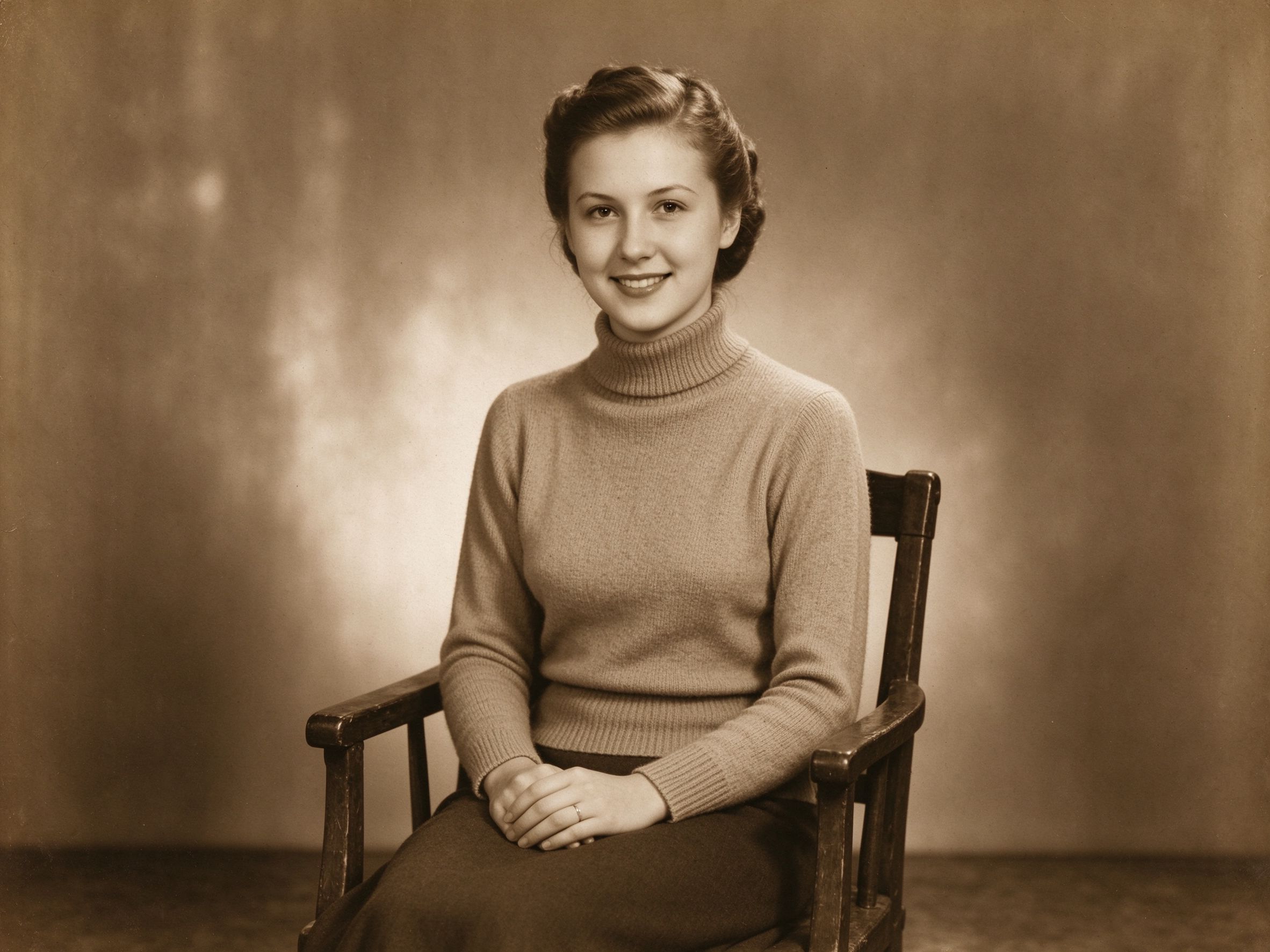
Sepia & Vintage Tone
Give a whole batch of prints a unified sepia look.
让整批照片统一成褐色调。
Related Guides
10 Photo Care Tips
Organize and convert a whole archive without quality loss.
整理并转换整套归档而不损失质量。
Scanning Old Photos
Scan a batch, then convert the files consistently.
先批量扫描,再统一转换文件。
Film Scan Restoration
Process a stack of film scans before exporting.
导出前先处理一叠胶片扫描件。
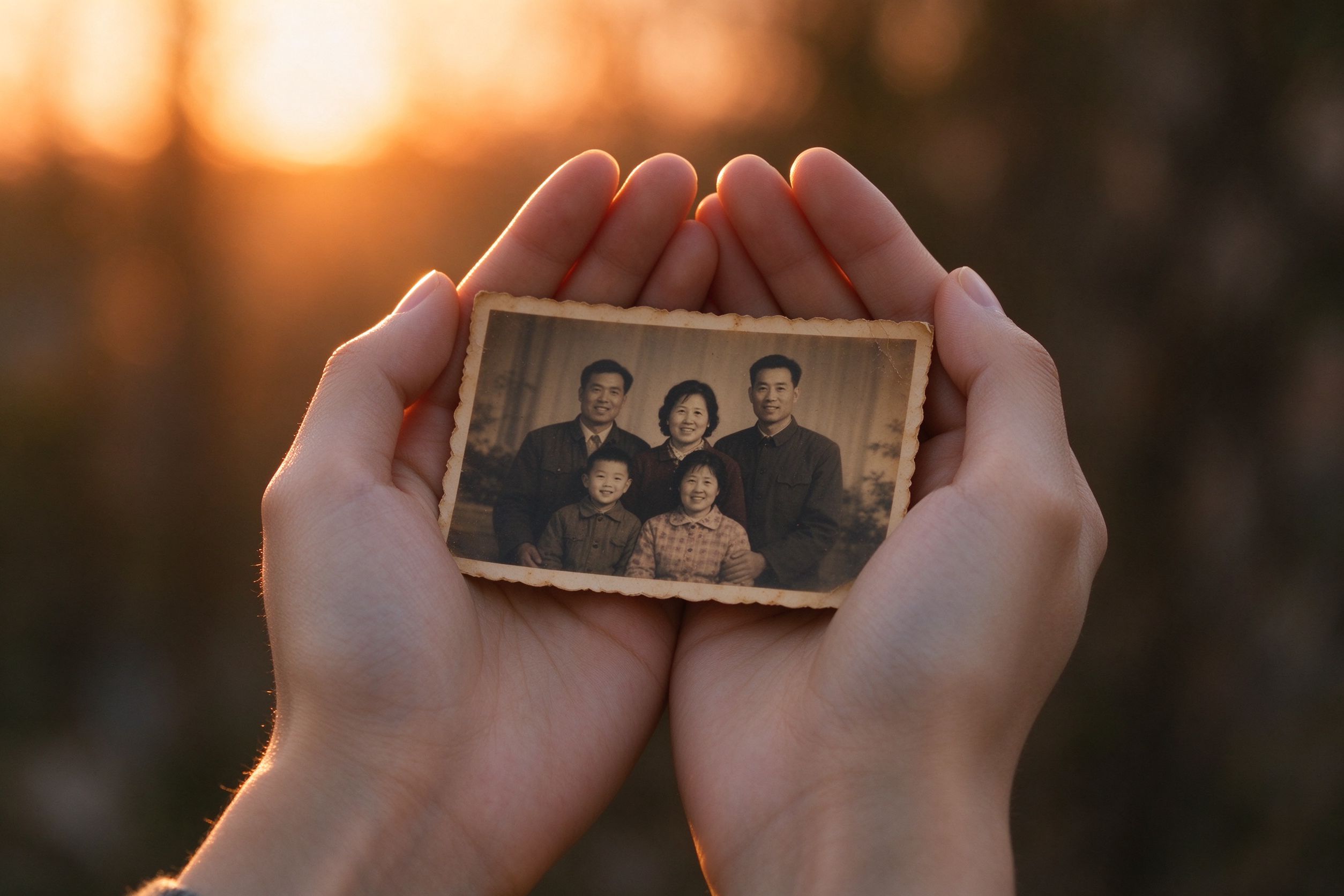
Privacy-First Editing
Why local batch conversion beats cloud uploads.
为什么本地批量转换胜过上传云端。