Red Eye Remover
Flash portraits from decades ago often show glowing red pupils. Click each red eye in the preview and watch it return to a natural dark tone — free, private, in your browser.
数十年前的闪光灯肖像里常有发红的瞳孔。在预览图中点击每一处红眼,它就会恢复自然的深色——免费、私密,就在浏览器中完成。
Private by design — your photo is processed locally and never uploaded.Drop a photo here, or click to browse
Supported formats: JPG, PNG, WebP, GIF, BMP
Drag to compare
Step 2: click directly on each red eye in the preview to fix it.
第二步:直接点击预览图中的每一处红眼即可修复。
Tip: upload the largest scan you have — bigger input gives better results.
How It Works
Red eye happens when a flash fires in a dark room: the pupil is wide open, light bounces off the blood-rich retina, and comes back straight at the camera as a glowing red dot. Digital editors fix it by targeting that specific red — not by darkening the whole eye. The Red Eye Remover does exactly that, locally in your browser, the moment you click a pupil.
What happens when you click an eye:
A soft zone is placed
Your click becomes the center of a small circular zone scaled to the photo size. The center of the circle is strongest; the edge fades out, so there is no hard edited patch.
Only reddish pixels change
Inside the zone, every pixel is tested: is the red channel clearly above the green and blue? That "redness" measure decides how strongly the pixel is corrected. Normal skin, eyebrows and iris pixels are ignored.
Pupils go to natural luminance
Red pupils are pulled toward the dark neutral tone of the surrounding iris, with a slight darkening — the way a real pupil looks in daylight, not a flat black dot.
Click as many eyes as you like
Each click is remembered and reapplied from the original photo, so you can fix every face in a group portrait and fine-tune the strength slider afterwards.
An honest note: this is a local pixel algorithm, not cloud AI. It fixes classic flash red eyes on visible pupils. It cannot change a person's eye color, recover closed or squinting eyes, or remove red reflections that are actually red painted backgrounds. If the pupil is tiny in a wide group shot, click as precisely as you can on the red dot itself.
红眼产生于暗室闪光:瞳孔张大,光线打在富含血管的视网膜上,原路弹回相机,成为一个发亮的红点。修图软件的做法是只针对这片红——而不是把整个眼睛压暗。Red Eye Remover 做的正是这件事:你一点击瞳孔,修复就在浏览器本地完成。
点击眼睛时发生了什么:
放置一个柔和区域
你的点击成为一个小圆区域的圆心,圆的大小随照片尺寸缩放。圆心处作用最强,边缘逐渐淡出,不会留下生硬的修补痕迹。
只改变偏红像素
在区域内逐个像素检测:红色通道是否明显高于绿、蓝?这个「红度」决定修正力度。正常皮肤、眉毛与虹膜像素都被忽略。
瞳孔回到自然亮度
发红的瞳孔被拉向周围虹膜的暗中性色调,并略微压暗——像白天真实瞳孔的样子,而不是一块死板的黑点。
想点多少只都行
每一次点击都会被记住,并从原图重新应用——你可以修复合照里的每一张脸,之后再用滑杆微调强度。
诚实说明:这是本地像素算法,不是云端 AI。它修复可见瞳孔上的经典闪光灯红眼。它无法改变一个人的眼睛颜色,无法恢复闭上或眯起的眼睛,也无法去除其实是红色背景反射的红点。如果瞳孔在大合照里很小,请尽量精确地点在红点本身上。
How to Use
- Upload the flash portraitDrop in the photo with red eyes. A clear scan or a good digital copy works best — the red pupil needs to be visible enough to click accurately.
- Click the first red pupilClick directly on the glowing red dot in the preview. The after view updates instantly with a natural dark pupil.
- Click every other red eyeRepeat for the second eye and for every other person in the frame. Fixes accumulate; drag the compare handle to check.
- Tune "Correction strength" if neededIf a corrected pupil still looks faintly red, raise the strength; if it went too dark, lower it and click again. Fixes replay automatically.
- Download the photoExport PNG for archiving, JPG for sharing the photo album, WebP for the smallest file.
- 上传闪光肖像拖入有红眼的照片。清晰的扫描件或数码拷贝效果最好——红瞳孔要足够明显,才能点得准。
- 点击第一只红瞳孔直接点击预览图中发亮的红点。修复后的视图会立即更新,瞳孔恢复自然深色。
- 点击其他每一只红眼对第二只眼睛、以及画面里其他每个人重复操作。修复会累积;拖动对比滑块检查效果。
- 必要时调节「修复强度」如果修好的瞳孔仍微微发红,提高强度;如果压得太暗,降低强度后重新点击。修复会自动重放。
- 下载照片存档导出 PNG,分享相册用 JPG,追求最小文件用 WebP。
FAQ
Is my photo uploaded to a server?
Why do I need to click the eye myself?
Nothing changed after I clicked. Why?
Can I use this to change eye color?
The pupil now looks too dark / too gray.
Is it free?
我的照片会被上传到服务器吗?
为什么需要我自己点击眼睛?
点击后没有变化,为什么?
可以用它改变眼睛颜色吗?
瞳孔现在看起来太暗/太灰了。
是免费的吗?
Related Tools
AI Photo Restorer
After fixing red eyes, use one-click restore for color and contrast.
修好红眼后,用一键修复处理色彩与对比度。
Photo Sharpener
Make the eye area crisp once the red reflection is gone.
去除红色反光后,让眼部区域更清晰。
Photo Denoiser
Flash photos are often grainy — clean the noise around the eyes first if needed.
闪光照片往往颗粒重——必要时先清理眼部周围噪点。
Scratch & Spot Remover
Dust specks near eyes can look like spots — smooth them away.
眼睛附近的灰尘点会像污点——用它平滑去除。
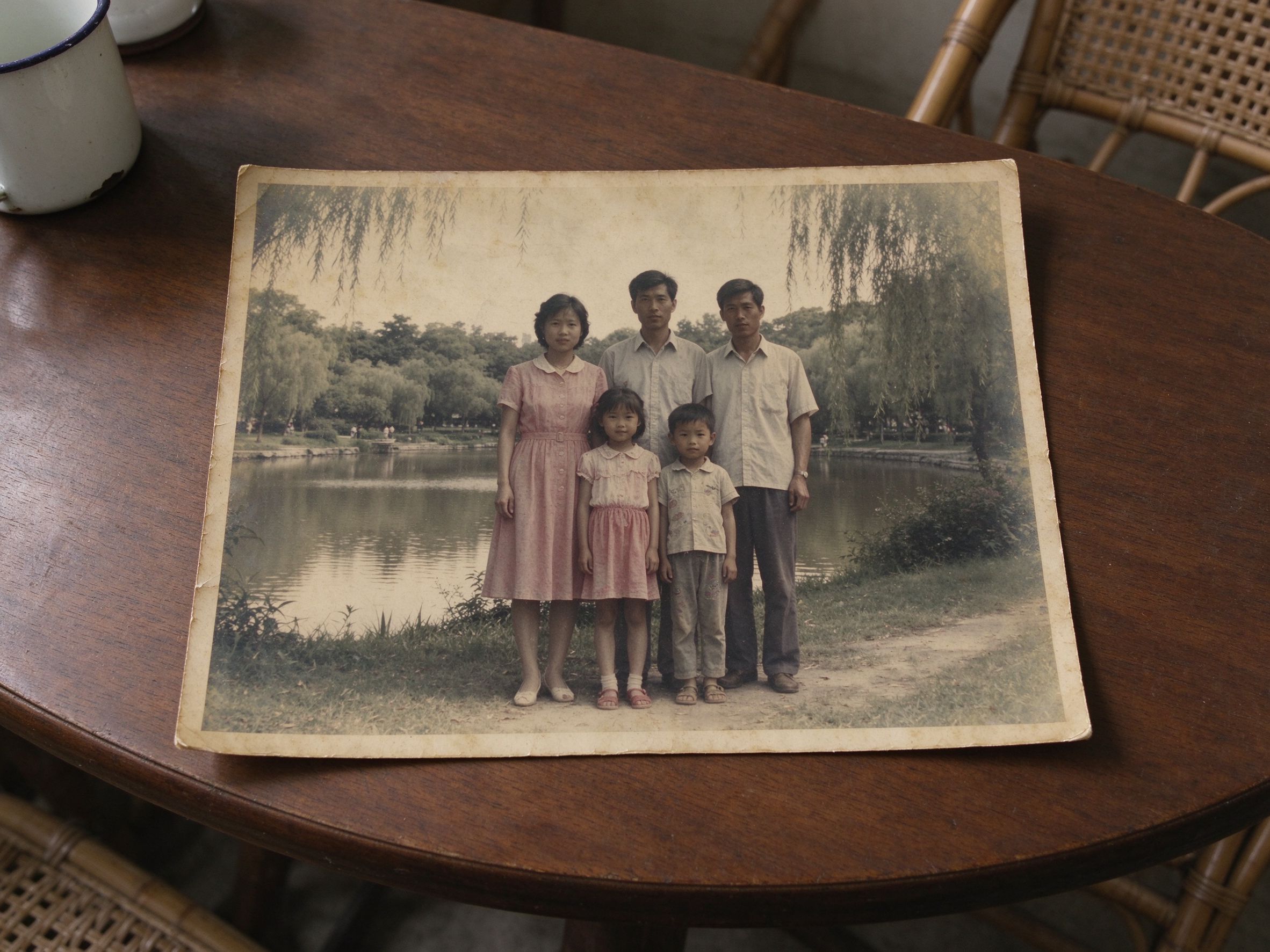
Faded Photo Fixer
Warm up the whole flash portrait after the eye correction.
眼部修正后,再让整张闪光肖像恢复温暖。
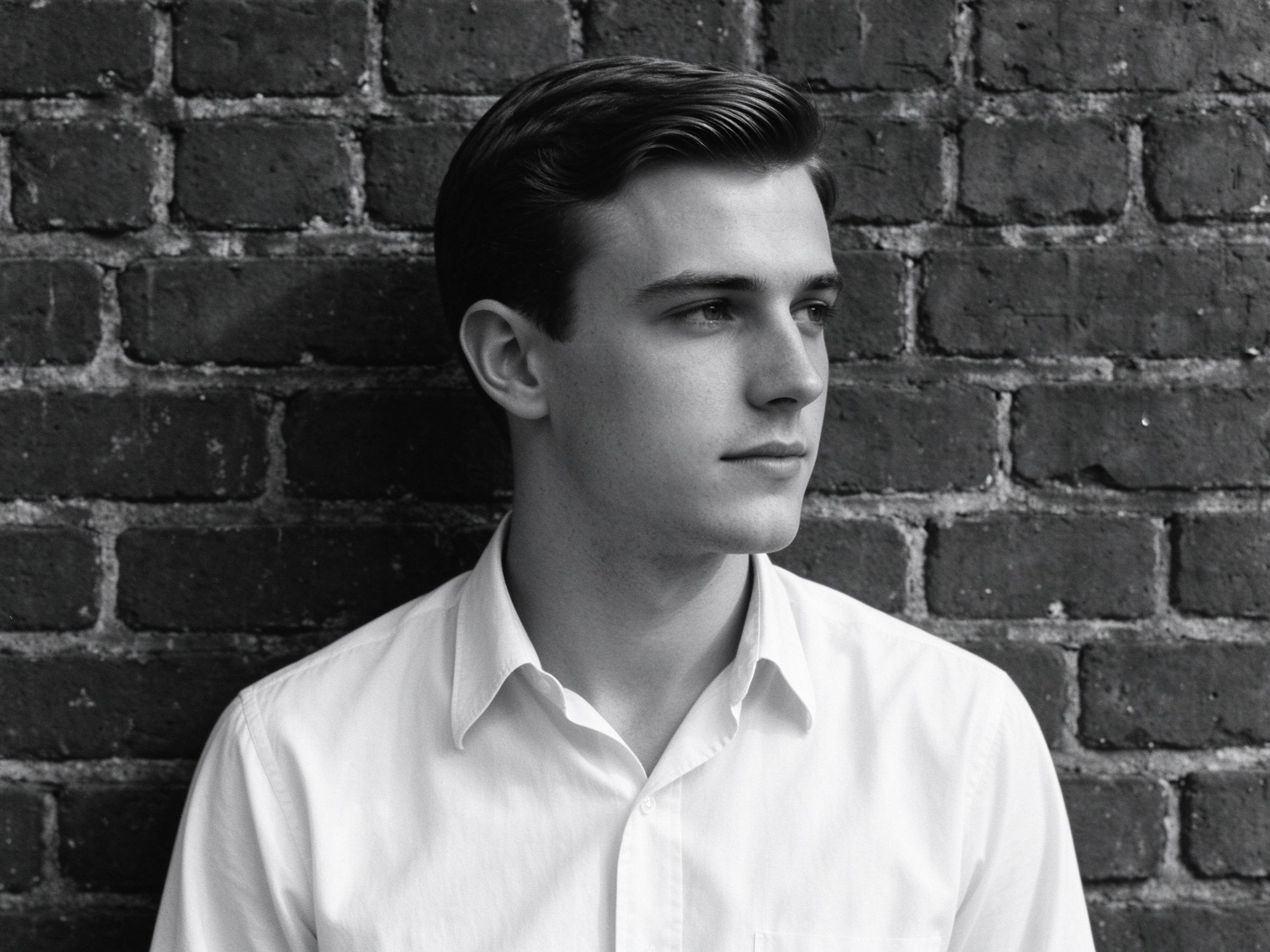
Black & White Converter
If the color damage is too far gone, a good monochrome honors the portrait anyway.
如果彩色损伤过重,优美的黑白同样能留住肖像。
Related Guides
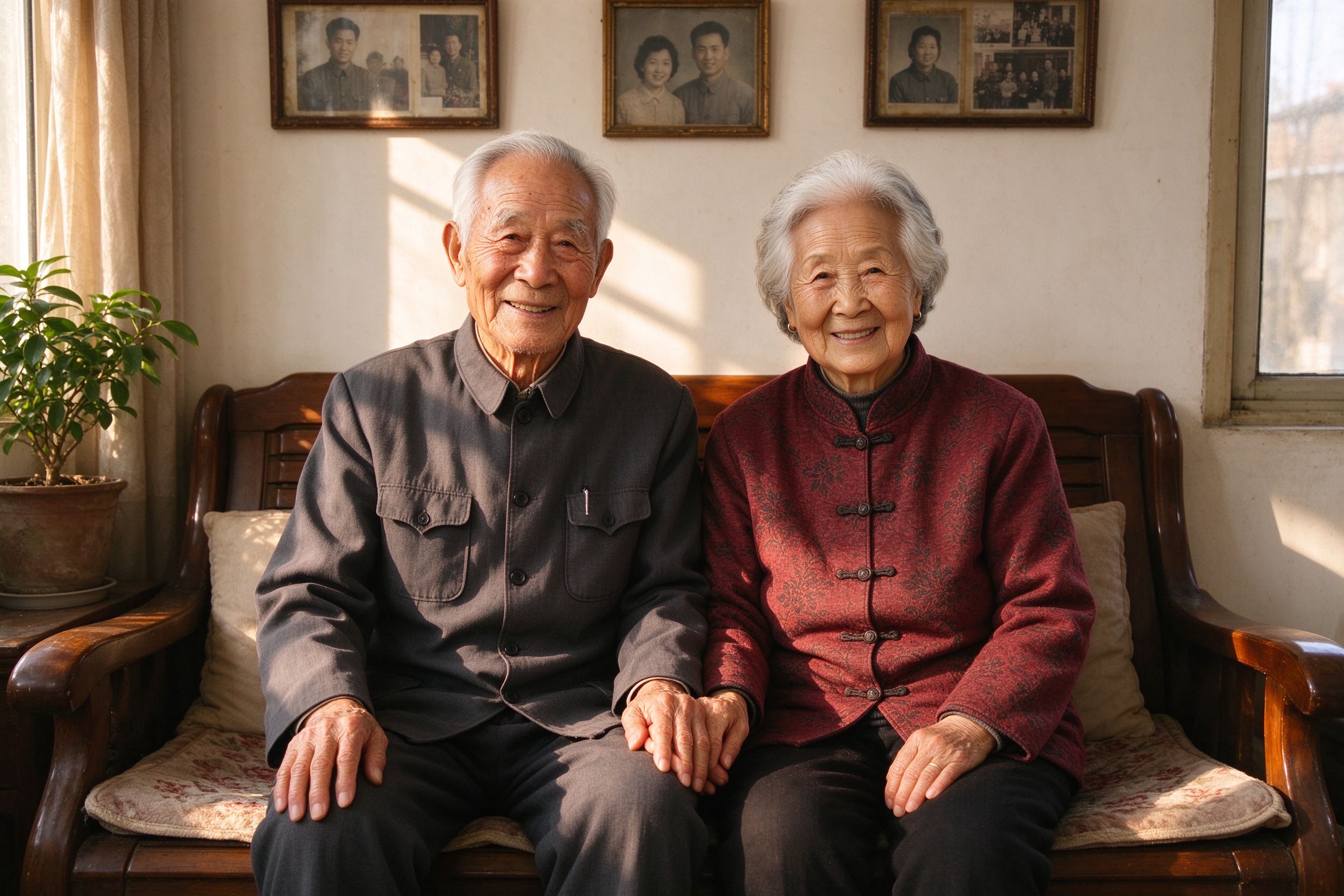
How to Restore Old Photos of Your Grandparents
Where eye fixes sit in the complete family portrait workflow.
眼部修正放在家庭肖像完整流程中的哪一步。
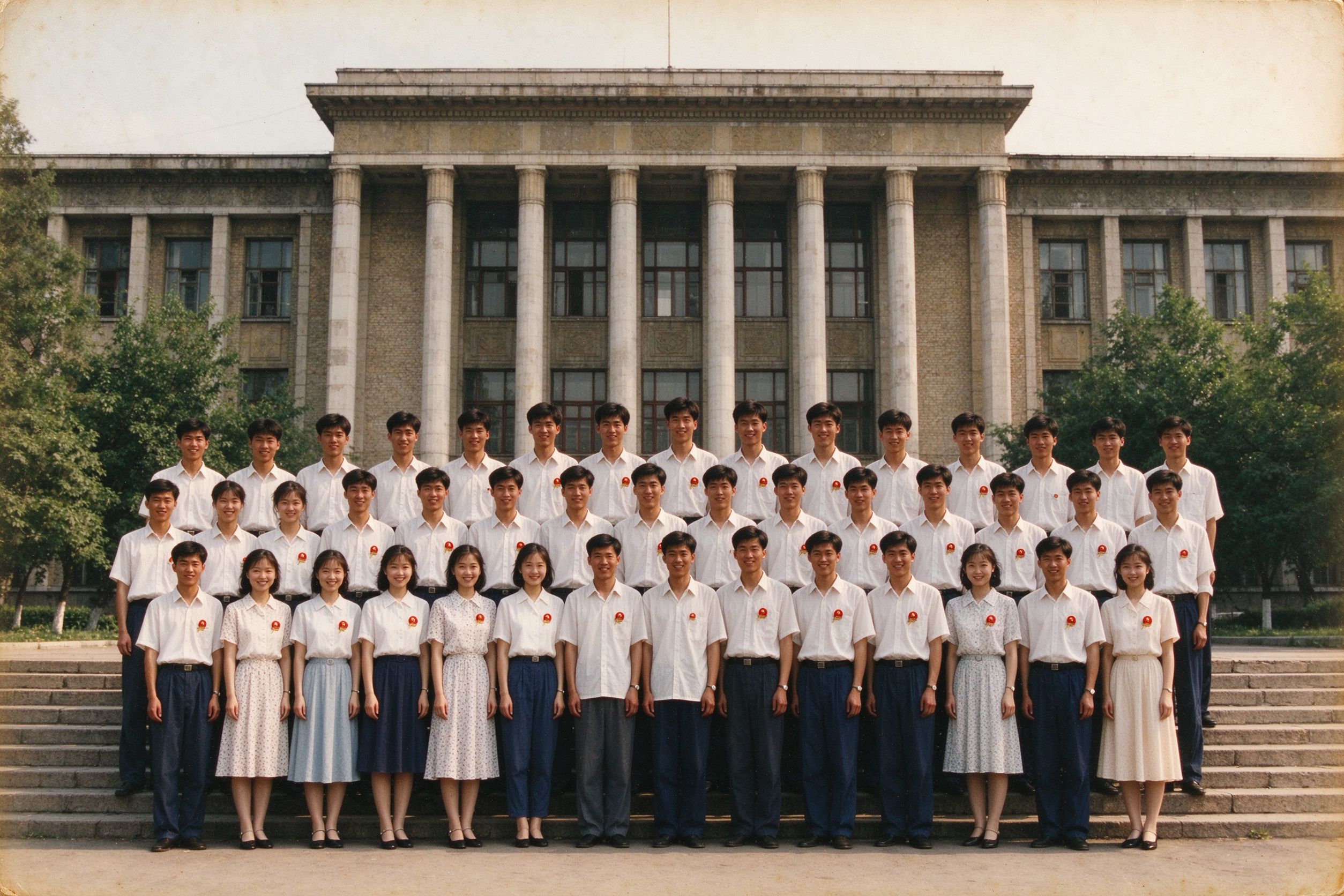
Restoring Graduation Photos: Clearer Faces
Yearbook flash shots are the classic red-eye situation.
年鉴闪光灯照片正是红眼的典型场景。
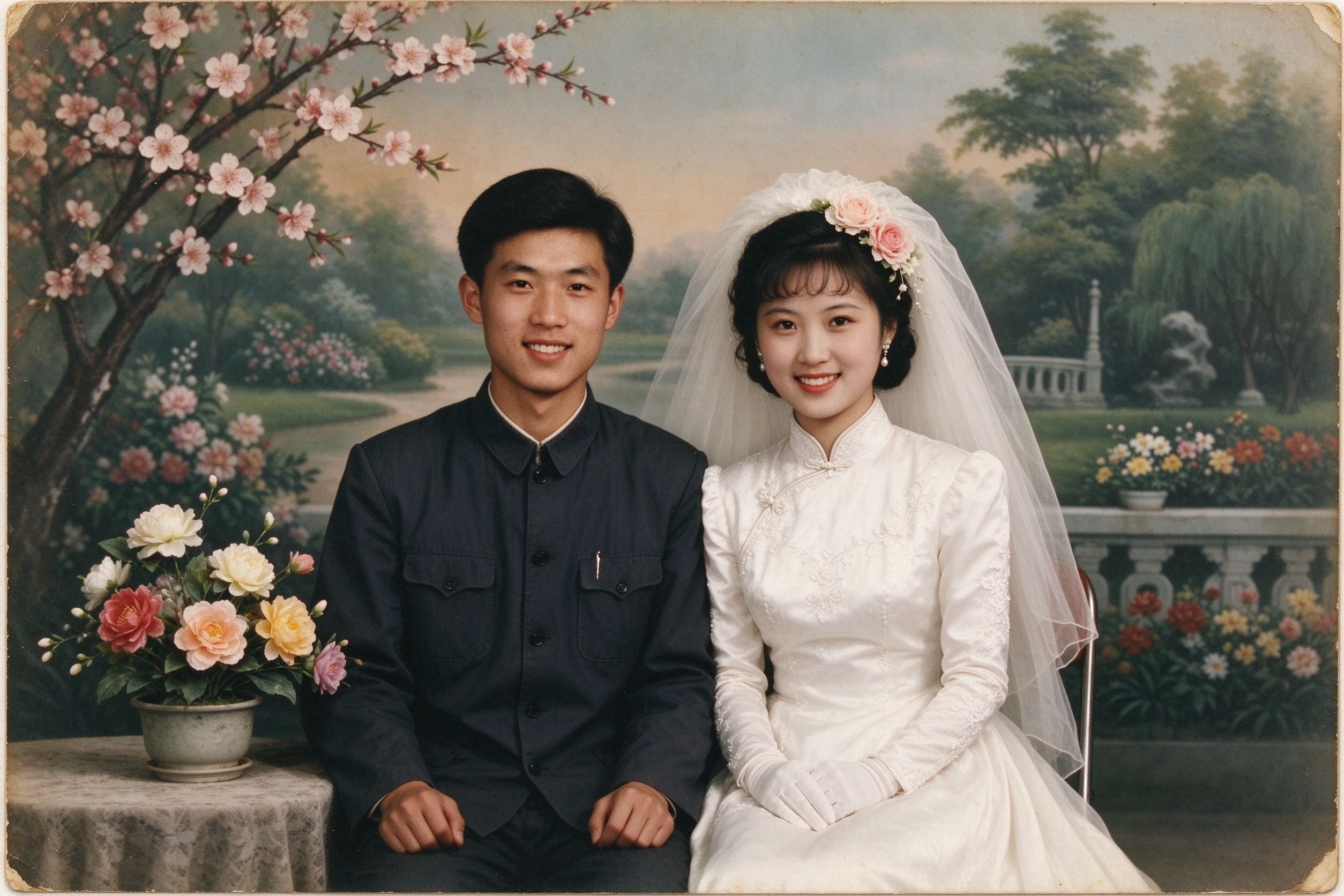
How to Restore Wedding Photos from Decades Ago
Group flash shots at receptions often need several eye clicks.
婚宴上的闪光合照往往需要多点几只眼睛。
10 Photo Care Tips to Preserve Memories
Store albums away from direct flash to avoid red-eye situations later.
相册避光保存,减少日后的红眼翻拍。