Color Temperature
Warm up a cold winter photo, cool down an indoor yellow cast, or push back that green fluorescent tint — two sliders, instant preview, entirely in your browser.
给寒冷的照片升温,压掉室内的黄色偏色,再把荧光灯那种发绿的色调拉回来——两个滑杆,实时预览,全程在浏览器里完成。
Private by design — your photo is processed locally and never uploaded.Drop a photo here, or click to browse
Supported formats: JPG, PNG, WebP, GIF, BMP
Drag to compare
Tip: upload the largest scan you have — bigger input gives better results.
How It Works
Every photograph is taken under some kind of light: candlelight is warm orange, overcast shade is cool blue, fluorescent tubes are greenish. Your camera usually compensates — but old scans, phone snapshots and film digitizations often come out with a visible cast. This tool multiplies your red, green and blue channels on the spot to warm, cool or de-green the image, entirely on your own device with the HTML5 Canvas API. Your photo is never uploaded, stored or seen by anyone.
What the two sliders do:
Temperature
Positive values raise red and lower blue — the photo goes warm and amber, like candlelight or a sunset. Negative values raise blue — the photo cools down, like open shade or a blue winter morning.
Tint
Negative values push the image toward green, positive toward magenta. Fluorescent-lit interiors often need a small negative-then-positive correction to remove that sickly green cast.
Manual, not magic
You are in charge of the look. There is no hidden "correct" value — judge by eye: skin should look natural, whites should look white.
Neutralize one click
"Neutralize Cast" returns both sliders to 0, so you can compare your graded version against the unmodified original at any time.
Creative as well as corrective
Warm up an already-nice family photo for a golden-hour feeling, or push cool on a snowy landscape for a crisp winter mood.
Fully local & private
No upload, no account, no watermark. Adjust as many photos as you like — even offline.
An honest note: this is a manual color-cast dial, not an automatic white balance. It cannot measure what "true white" should be — if you want the tool to guess the neutral point for you, use the Faded Photo Fixer, which runs a gray-world auto-balance first. Over-sliding past the point where whites look right will create a new cast of its own.
每张照片都在某种光线下拍摄:烛光暖橙、阴天阴影冷蓝、荧光灯偏绿。相机通常会做补偿——但老扫描件、手机随手拍和胶片数码化的结果,常常带着明显偏色。本工具实时乘算你的红、绿、蓝通道,把画面调暖、调冷或去绿,全程在你的设备上通过 HTML5 Canvas API 完成。照片永远不会被上传、存储或被人看到。
两个滑杆的作用:
色温
正值提高红色、压低蓝色——画面变暖变琥珀,像烛光或夕阳;负值提高蓝色——画面变冷,像露天阴影或冬日清晨。
色调
负值把画面推向绿,正值推向品红。荧光灯室内拍的照片常需要先往正方向微调,去掉那种发闷的绿。
手动而非魔法
观感由你掌控。没有隐藏的「正确值」——用眼睛判断:肤色自然、白色不再发色就对了。
一键还原中性
「还原中性」把两个滑杆归 0,方便你随时把调色后的版本与原图对比。
既能校正也能创作
给本来不错的家庭照片加一点暖调做出黄金时刻感,或把雪景拉冷做出清冽的冬日氛围。
完全本地、隐私安全
不上传、不注册、无水印。想调多少张就调多少张,断网也能用。
诚实说明:这是一个手动偏色旋钮,不是自动白平衡。它不会替你判断「真正的白」该是什么——想让工具自动猜中性点,请用「褪色修复」,它会先跑一遍灰度世界自动平衡。滑过了头,白色不白了,就等于制造了新的偏色。
How to Use
- Upload the photo with the castDrag it into the drop zone or click to browse. JPG, PNG, WebP, GIF and BMP are supported.
- Look at something that should be whiteFind a wall, a shirt or the sky in your photo. As you move the Temperature slider, watch that reference point until the white looks right.
- Correct the green-magenta tintIf the corrected image still looks slightly green or pink, nudge the Tint slider the opposite way until skin and foliage look natural.
- Go creative if you likeOnce the base is neutral, push Temperature a little positive for warmth or negative for a cool, crisp mood.
- Download your resultExport PNG for archiving, JPG for sharing, WebP for the web.
- 上传偏色的照片拖入或点击选择。支持 JPG、PNG、WebP、GIF、BMP。
- 找一个本该是白色的地方画面里的白墙、白衣或天空。边动「色温」滑杆边看它,直到白色看起来正常。
- 校正绿品偏色如果校完还略发绿或略粉,把「色调」滑杆往反方向微调,直到皮肤与植物看着自然。
- 想创作就再推一点底色中性之后,把色温往正推一点得暖意,往负推得清冷干爽的氛围。
- 下载结果存档用 PNG,分享用 JPG,网页用 WebP。
FAQ
My old photo looks yellow. Which way do I slide?
Why does my indoor photo look green?
What is the difference between this and "auto white balance"?
Will this fix a heavily color-shifted film scan?
Is my photo uploaded to a server?
Is it really free and unlimited?
我的老照片发黄,该往哪个方向拉?
为什么室内拍的照片发绿?
这和「自动白平衡」有什么区别?
它能修好严重偏色的胶片扫描吗?
我的照片会被上传到服务器吗?
真的免费且不限次数吗?
Related Tools
Faded Photo Fixer
Automatic white balance, contrast and saturation for faded prints.
褪色照片的自动白平衡、对比度与饱和度修复。
Sepia & Vintage Tone
Layer a warm vintage brown tone over your corrected colors.
在校正好的颜色上再罩一层温暖复古褐。
Duotone Generator
Remap luminance between two custom colors for graphic impact.
把亮度重映射到两种自定义颜色之间,制造图形冲击力。
Black & White Converter
Drop color entirely and sculpt light with channel mixing.
完全去掉颜色,用通道混合塑造光影。
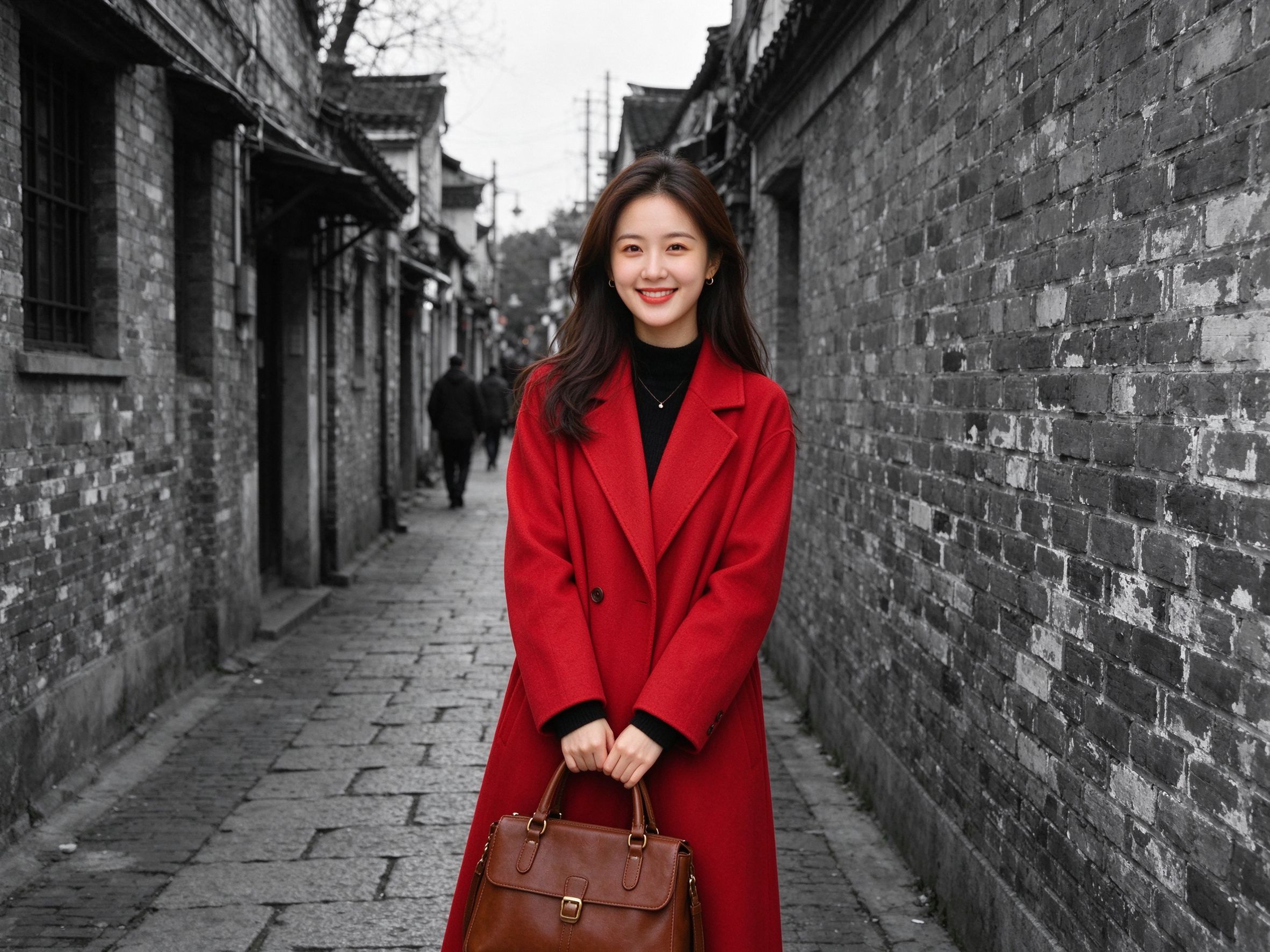
Color Pop
Keep one focal subject in vivid color against a monochrome rest.
让一处焦点主体保持鲜艳彩色,其余褪为黑白。
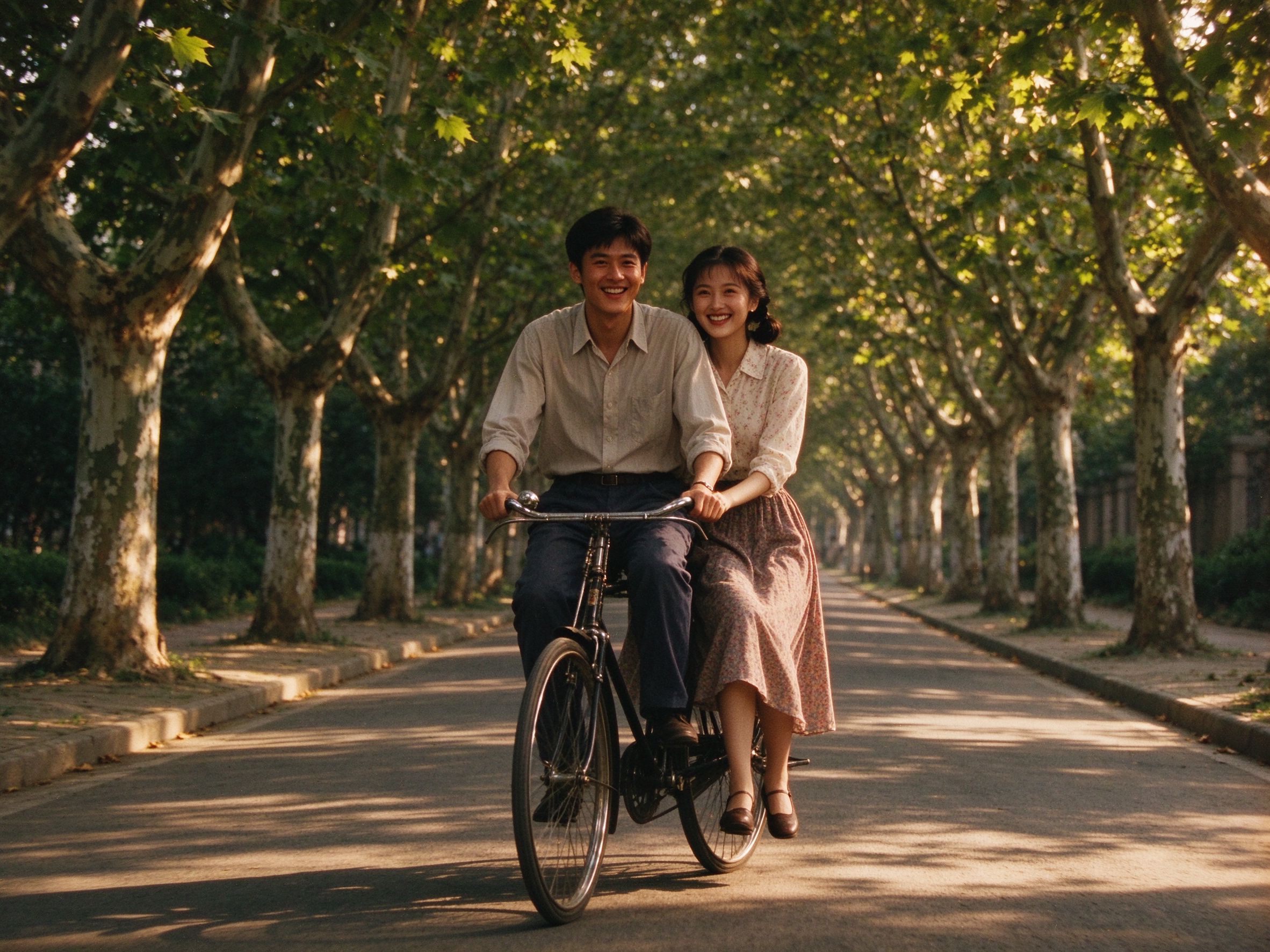
Old Movie Effect
Warm grade, grain and vignette for a vintage film mood.
暖调、颗粒与暗角,营造复古电影氛围。
Related Guides
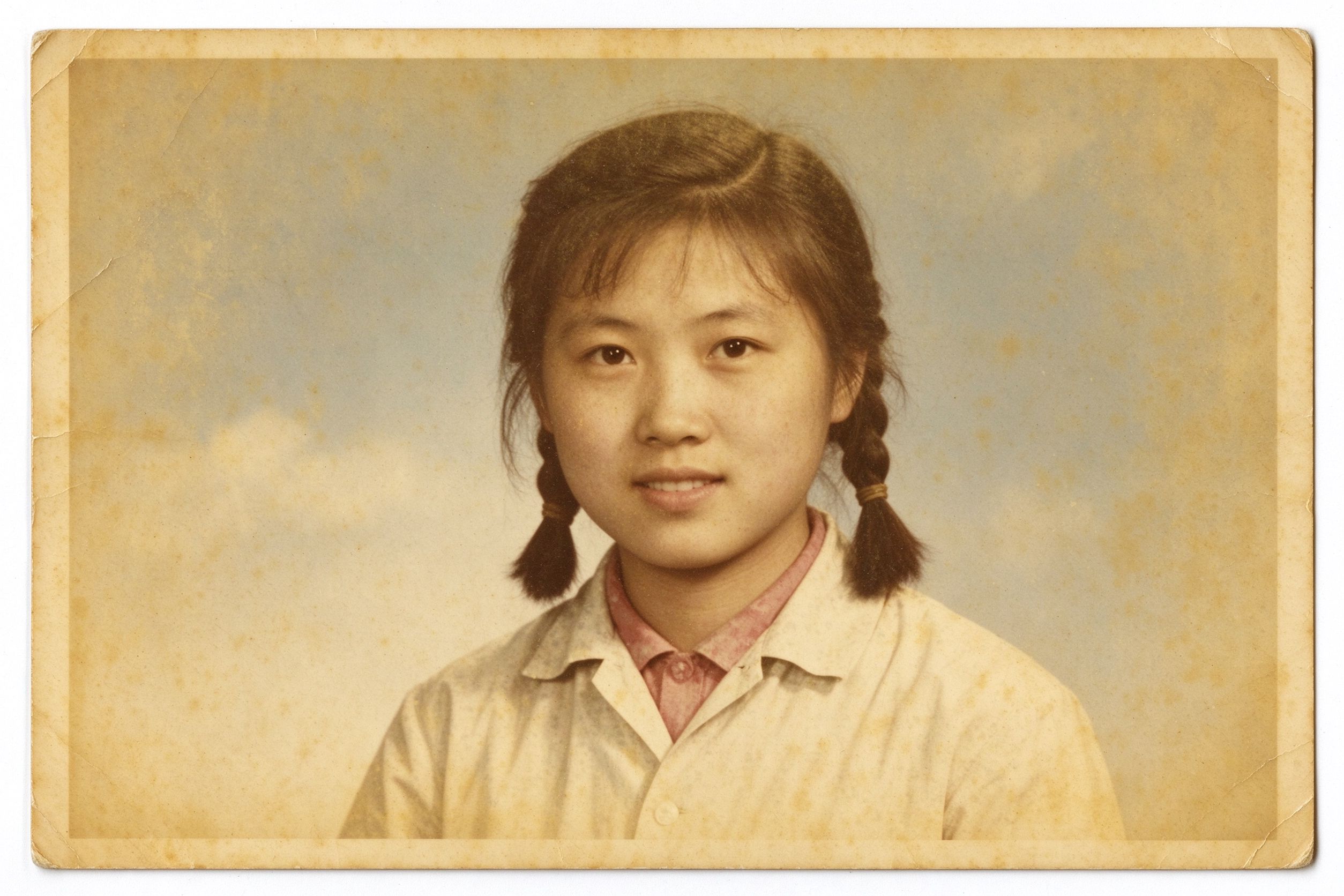
Faded Photo Restoration: Color & Contrast
Why old prints yellow, and how to correct cast safely.
老照片为何发黄,以及如何安全校正偏色。
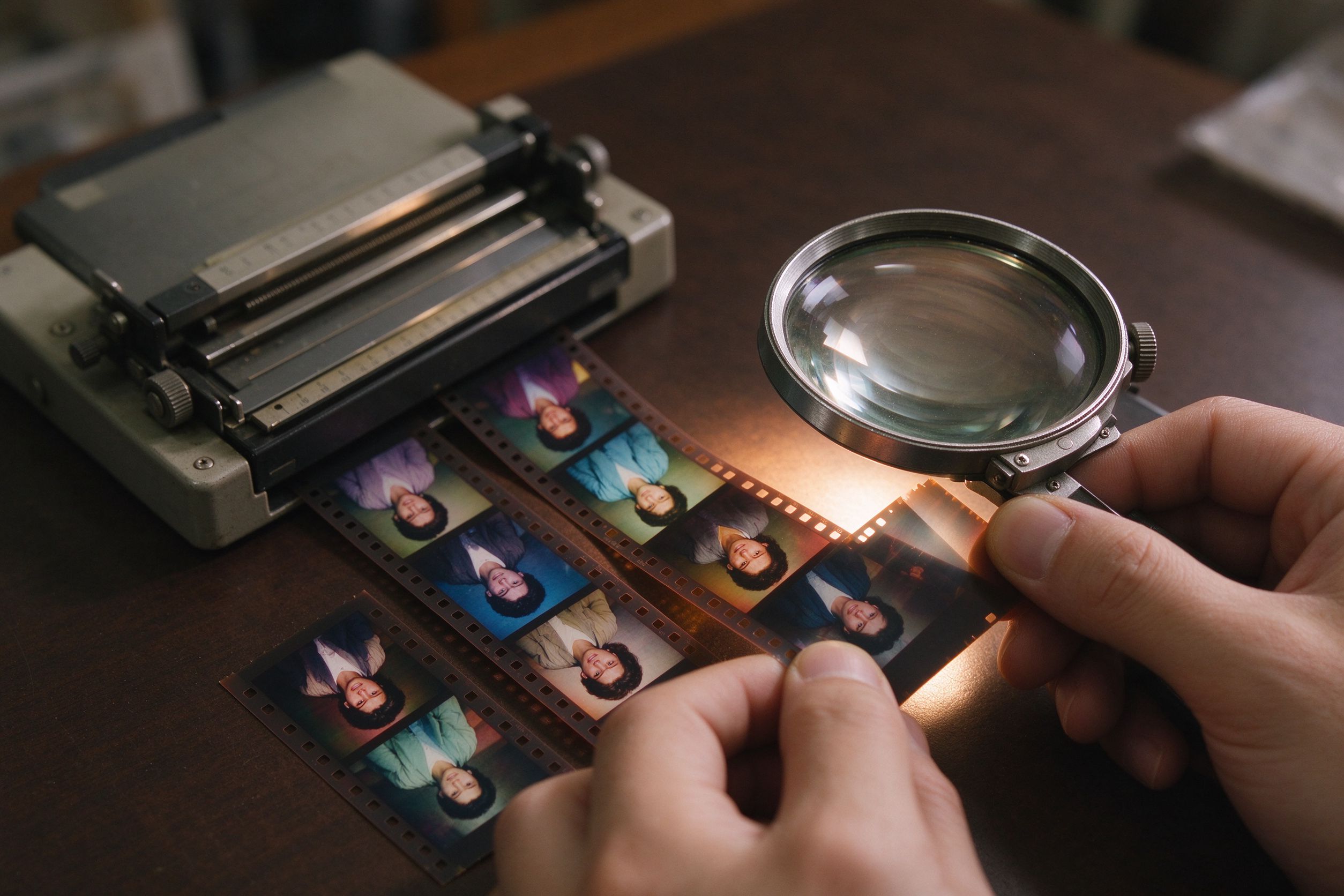
Film Scan Restoration: Dust, Grain & Color Shifts
Film scans often need temperature and tint work — here is how.
胶片扫描常需要色温与色调处理——方法都在这里。
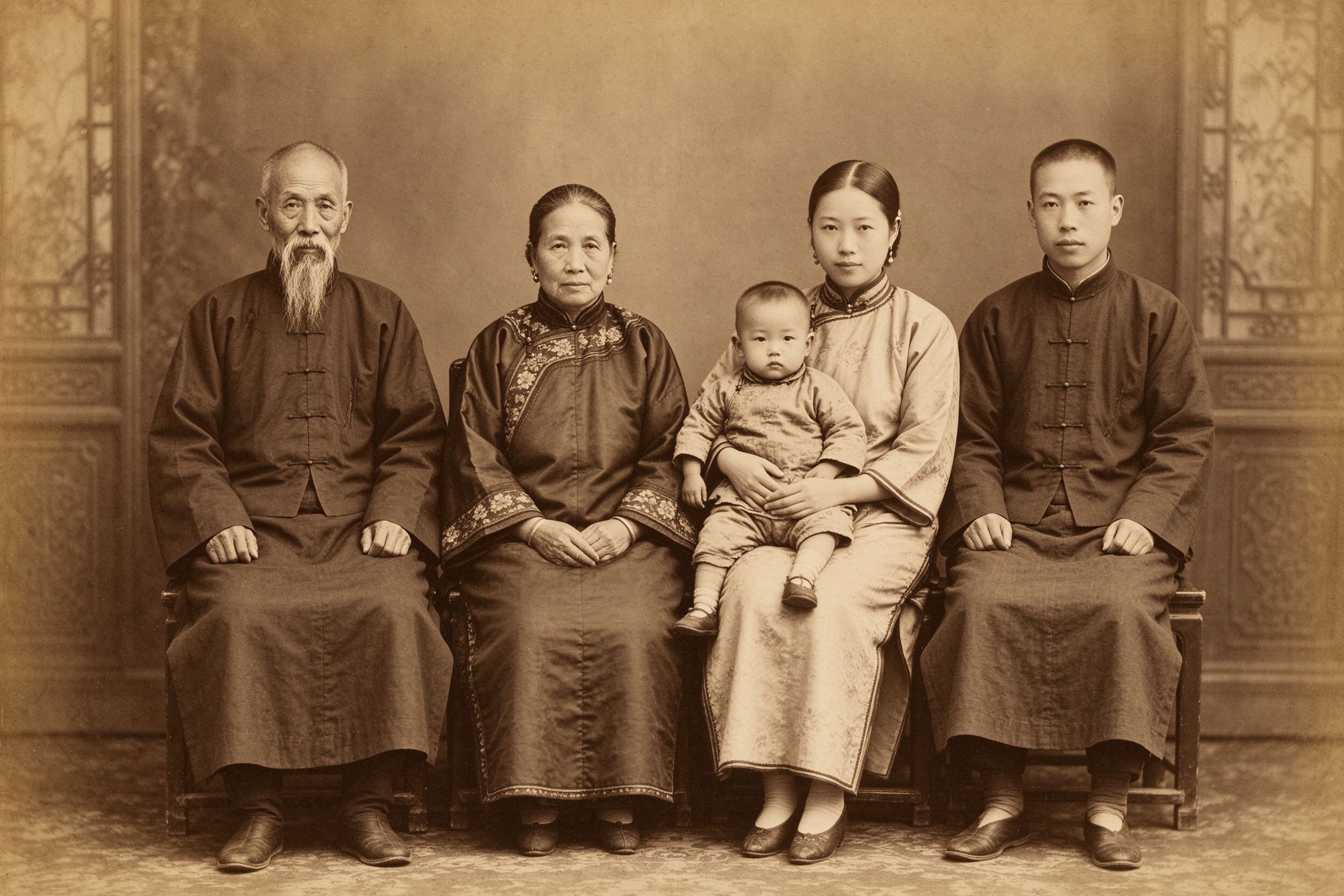
The Art of Sepia: Making Photos Look Truly Vintage
When a warm cast is the goal rather than the problem.
当暖调不是问题、而是你想要的效果时。
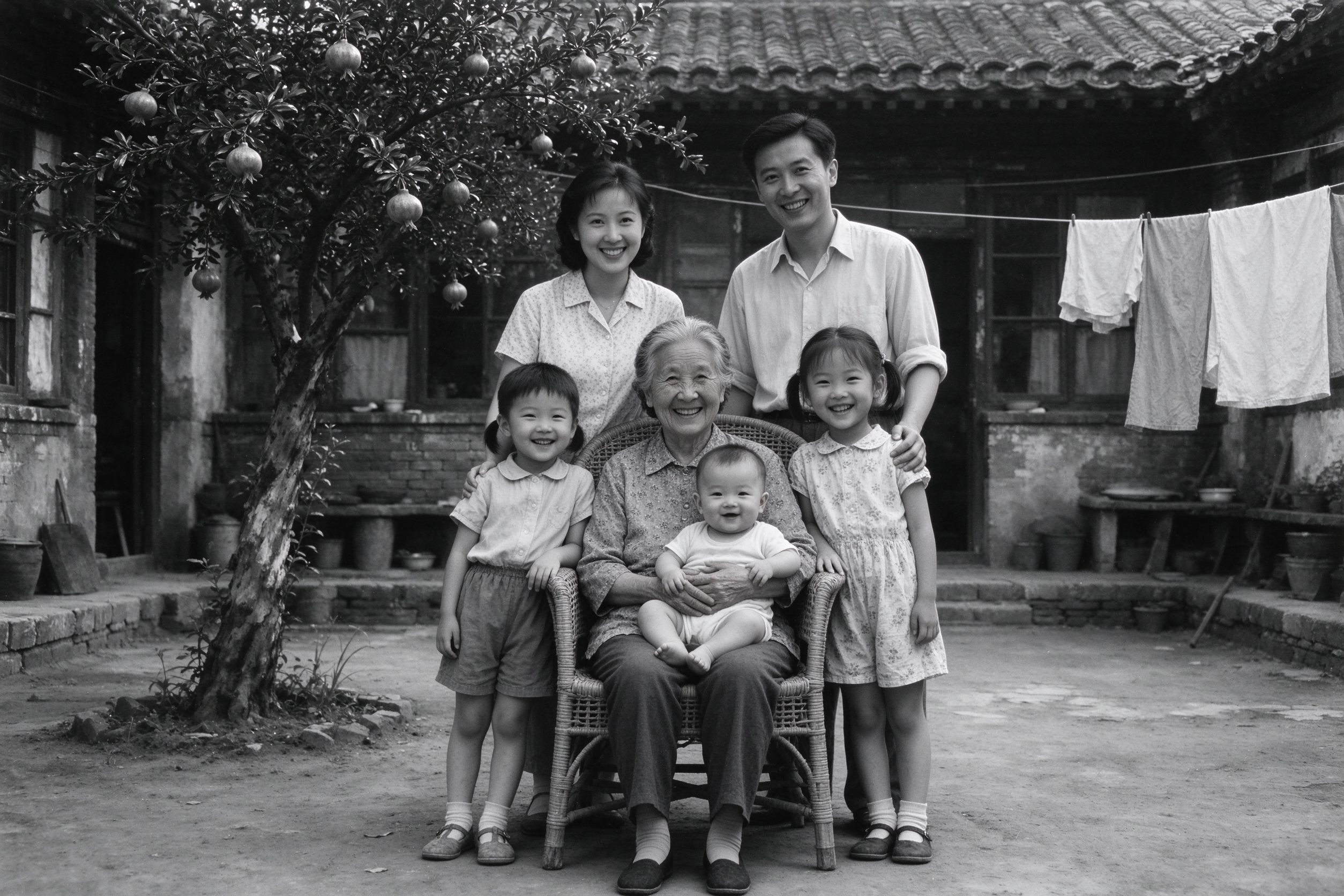
How to Convert Old Photos to Black and White Properly
Sometimes the best fix for bad color is to remove it.
偏色救不回来时,最好的修复就是去掉颜色。