Color Pop
The classic "selective color" look: one red rose, a child's blue coat, a warm bouquet stays in vivid color while everything around it sinks into timeless black and white. Just click where the color should live.
经典「选择性上色」效果:一朵红玫瑰、孩子的蓝外套、一束暖花保持鲜艳,周围一切沉入黑白。点一下,颜色就留在那里。
Private by design — your photo is processed locally and never uploaded.Drop a photo here, or click to browse
Supported formats: JPG, PNG, WebP, GIF, BMP
Click the preview where the color should stay — drag the sliders to size and soften the focus.
在预览图上点击颜色要保留的位置——用滑杆调整焦点大小与边缘柔化。
Tip: upload the largest scan you have — bigger input gives better results.
How It Works
"Color pop" — the selective-color look seen in movies and posters — works by converting the whole photo to black and white, then brushing the original color back in, only around one point you choose. This tool does exactly that on your own device, through the HTML5 Canvas API: a soft-edged circular mask centered on your click blends original color in, and desaturation everywhere else. Your photo is never uploaded, stored or seen by anyone.
How the controls map to the image:
Click to set the focus
The small white ring is your focus point. Click anywhere on the preview — on a face, a flower, a dress — and the color returns right there.
Focus radius
How large the colored circle is. Small for a single rose or eye; large for a whole person or a table setting.
Edge softness
How gradually color fades into black and white. High values give a dreamy transition; low values a crisp graphic circle.
Invert toggle
Flip it to colorize everything outside the circle — a single black-and-white face against a colorful world, the reverse look.
Center Focus shortcut
One click moves the focus point back to the middle of the frame and restores the default radius — a clean starting point for experiments.
Fully local & private
No upload, no account, no watermark. Pop as many photos as you like — even offline.
An honest note: this is a circular soft mask blended onto your photo — it is not automatic subject detection. The tool cannot find faces, objects or flowers by itself; you place the circle. It also only recolors and desaturates existing pixels — it cannot invent new colors, sharpen, or repair detail. Choose a photo where your focal object is obvious and isolated for the most convincing result.
「Color Pop」——电影与海报里常见的选择性上色——原理是先把整张照片转黑白,再只在你指定的一点周围把原来的颜色刷回来。本工具在你的设备上通过 HTML5 Canvas API 精确实现:一个以你点击处为圆心、边缘柔和的圆形蒙版,把原始颜色融合进去,画面其余部分去色。照片永远不会被上传、存储或被人看到。
控件如何映射到画面:
点击设焦点
那个小白圈就是焦点。在预览图上任意点击——人脸、一朵花、一件裙子——颜色就回到那里。
焦点半径
彩色圆有多大。单朵玫瑰或一只眼睛就小;整个人或一桌菜就大。
边缘柔化
彩色渐隐到黑白的速度。值高是梦幻过渡,值低是干净利落的图形圆。
反选开关
翻开它,给圆圈之外上色——黑白人脸立于彩色世界中的反向效果。
居中焦点快捷按钮
一键把焦点移回画面中央、恢复默认半径,方便重新实验。
完全本地、隐私安全
不上传、不注册、无水印。想做多少张就做多少张,断网也能用。
诚实说明:这是一个叠在照片上的圆形柔边蒙版——它不是自动主体识别。工具自己找不到人脸、物体或花朵,圆心由你来放。它也只对现有像素做上色与去色,不能凭空加色、锐化或修复细节。想效果最自然,请选一张焦点物体清晰、突出的照片。
How to Use
- Upload a photo with a clear focal colorWorks best when one object stands out: a red umbrella, green plants against gray streets, a child's toy. Drag the photo in or click to browse.
- Click the preview to place the focusClick right on the object you want to keep colored. The white ring marks the center — click again anywhere to move it.
- Size and soften the circleAdjust "Focus radius" until the colored area covers your subject, then raise "Edge softness" so the transition to black and white looks natural rather than cut out.
- Try the Invert toggleFlip it to colorize the background instead — a striking look when the subject itself should stay monochrome.
- Download your color-pop photoExport PNG for quality, JPG for sharing, WebP for the web.
- 上传一张焦点颜色鲜明的照片最好是某个物体一眼突出:红雨伞、灰街道上的绿植、孩子的玩具。拖入或点击选择。
- 点击预览设置焦点直接点在你想保留颜色的物体上。白圈标记圆心——再点别处即可移动。
- 调整圆的大小与柔化调「焦点半径」让彩色区域罩住主体,再提高「边缘柔化」,使过渡自然、不像剪出来的。
- 试试反选开关翻开后给背景上色——当主体本身该是黑白时,这是很有张力的效果。
- 下载 Color Pop 作品存档用 PNG,分享用 JPG,网页用 WebP。
FAQ
Can the tool automatically find the object I want to keep colored?
The edge between color and black and white looks too hard. What do I do?
My colored area is too small — it does not cover the whole person.
What does the Invert button do?
Does this work on old family photos?
Is my photo uploaded to a server?
工具能自动找到我想保留颜色的物体吗?
彩色和黑白之间的边缘太硬,怎么办?
彩色区域太小,罩不住整个人?
「反选」按钮是做什么的?
它能用在家庭老照片上吗?
我的照片会被上传到服务器吗?
Related Tools

Black & White Converter
Go fully monochrome with channel-mix control.
用通道混合得到完整黑白。
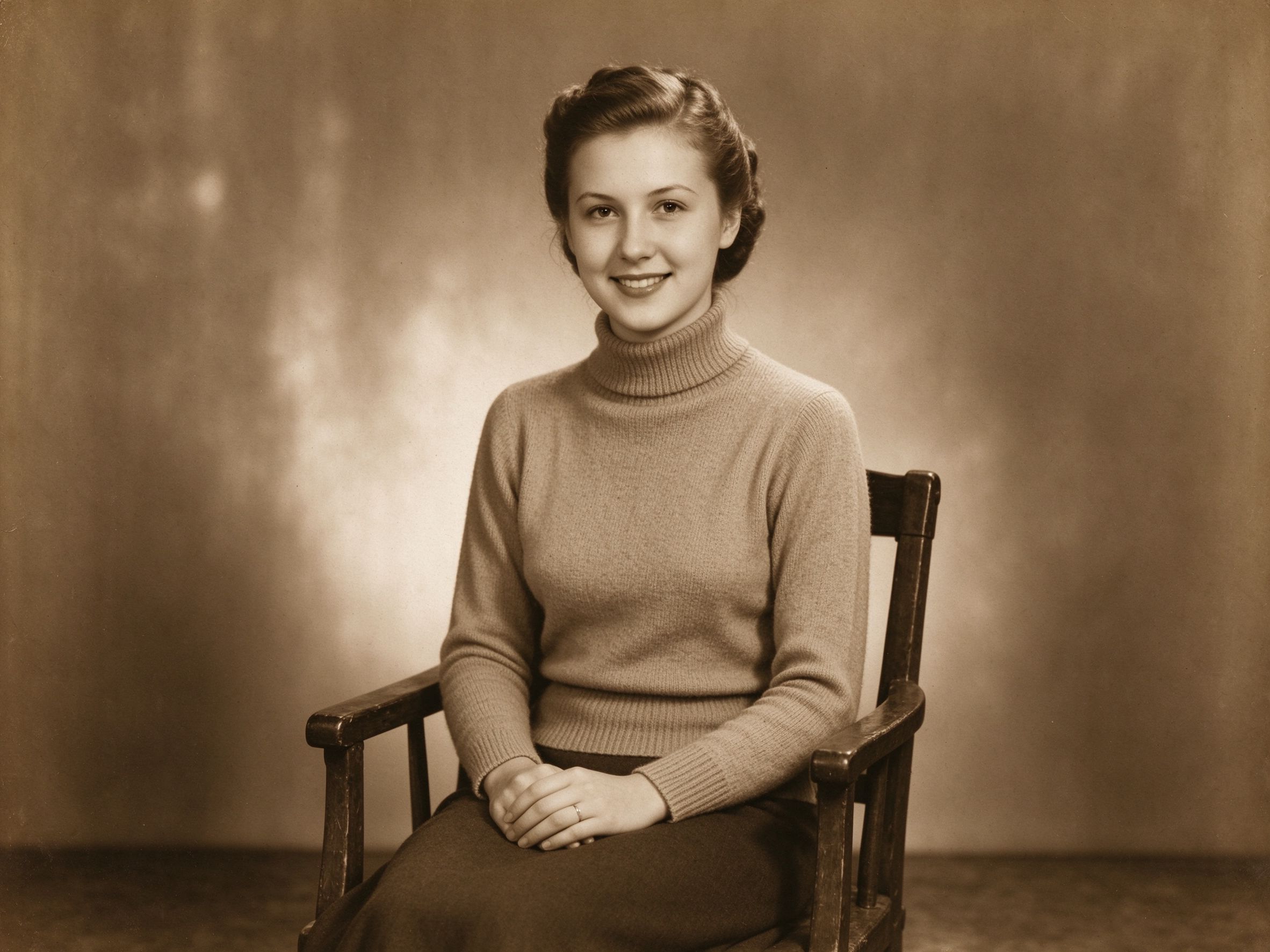
Sepia & Vintage Tone
Warm every tone of the photo instead of dropping color.
不丢色,而是把整个画面染暖。
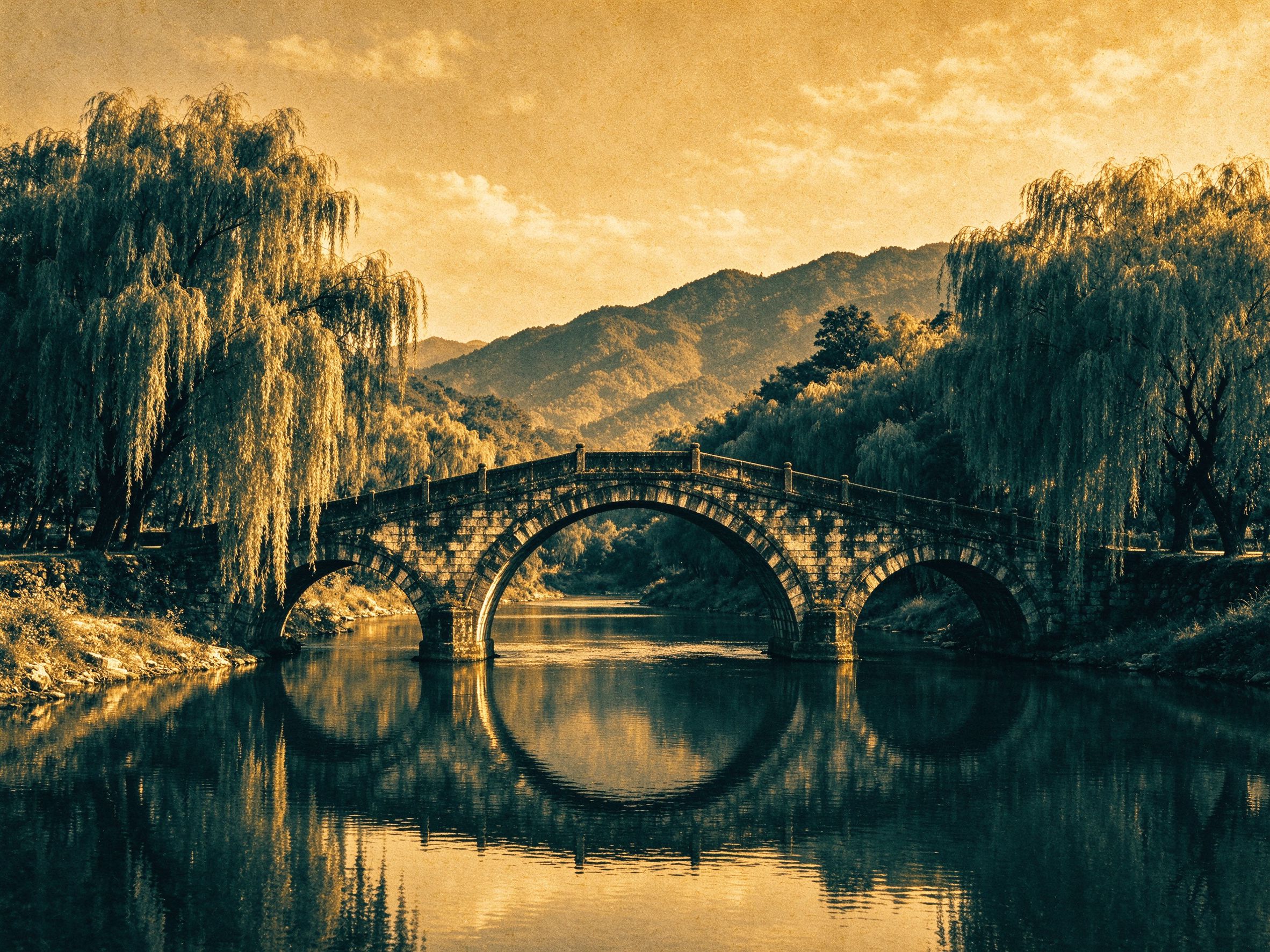
Duotone Generator
Recolor the whole image between two custom inks.
把整张图重染成两色油墨之间的渐变。
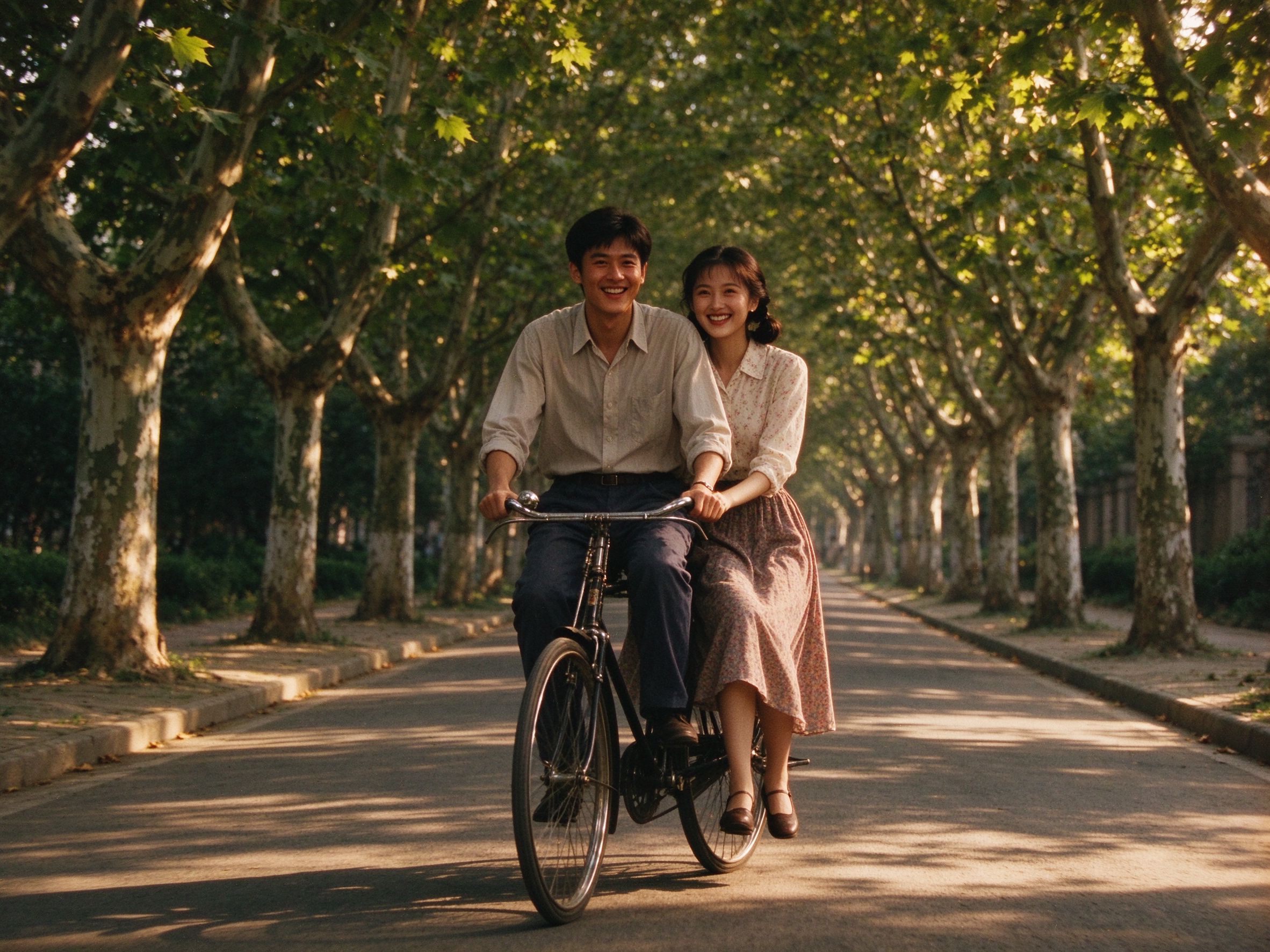
Old Movie Effect
Add grain and vignette around your color pop.
在 Color Pop 之外再加颗粒与暗角。
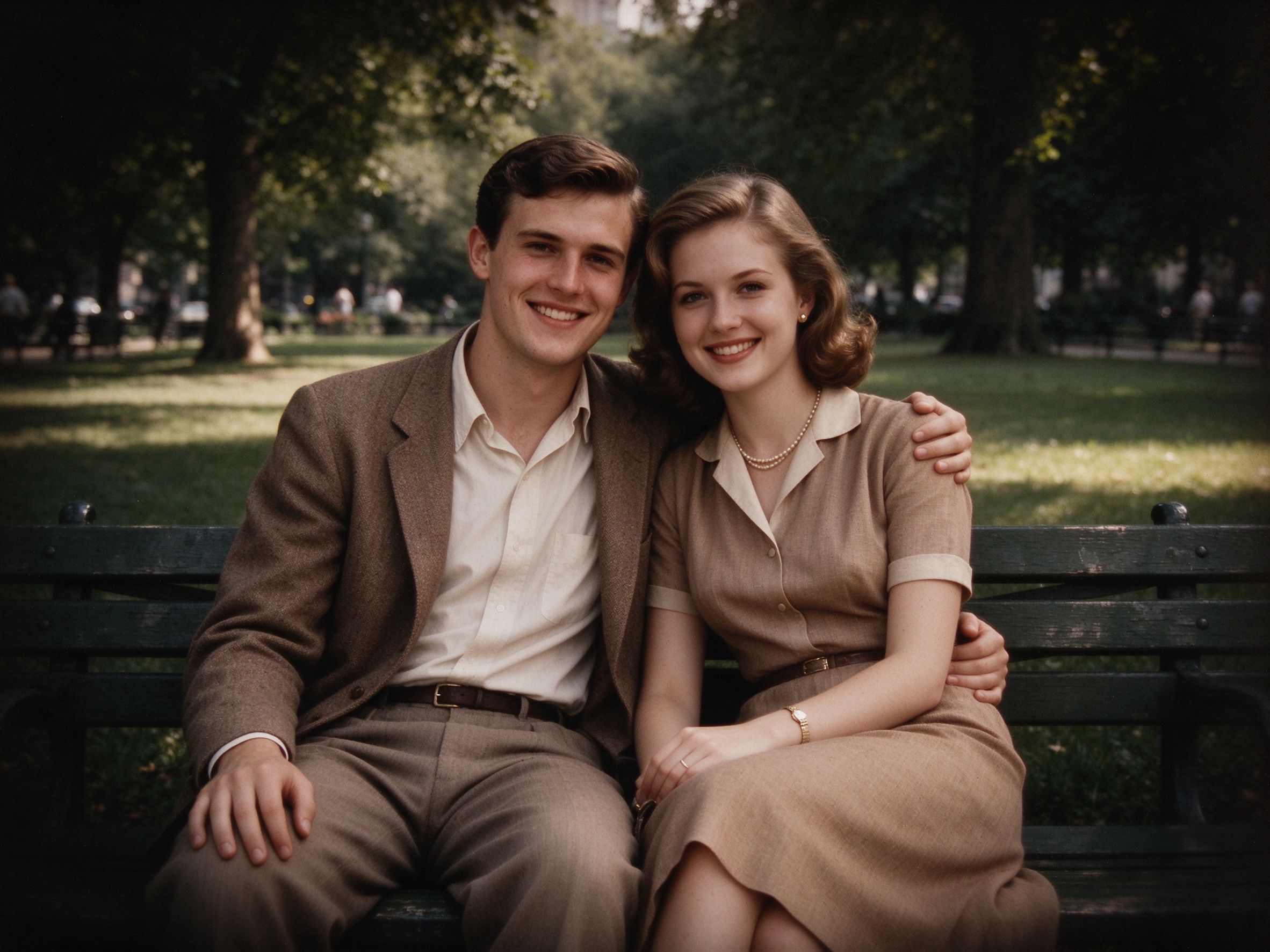
Vignette Effect
Push the eye toward your focal subject from another angle.
用另一种方式把视线推向焦点主体。
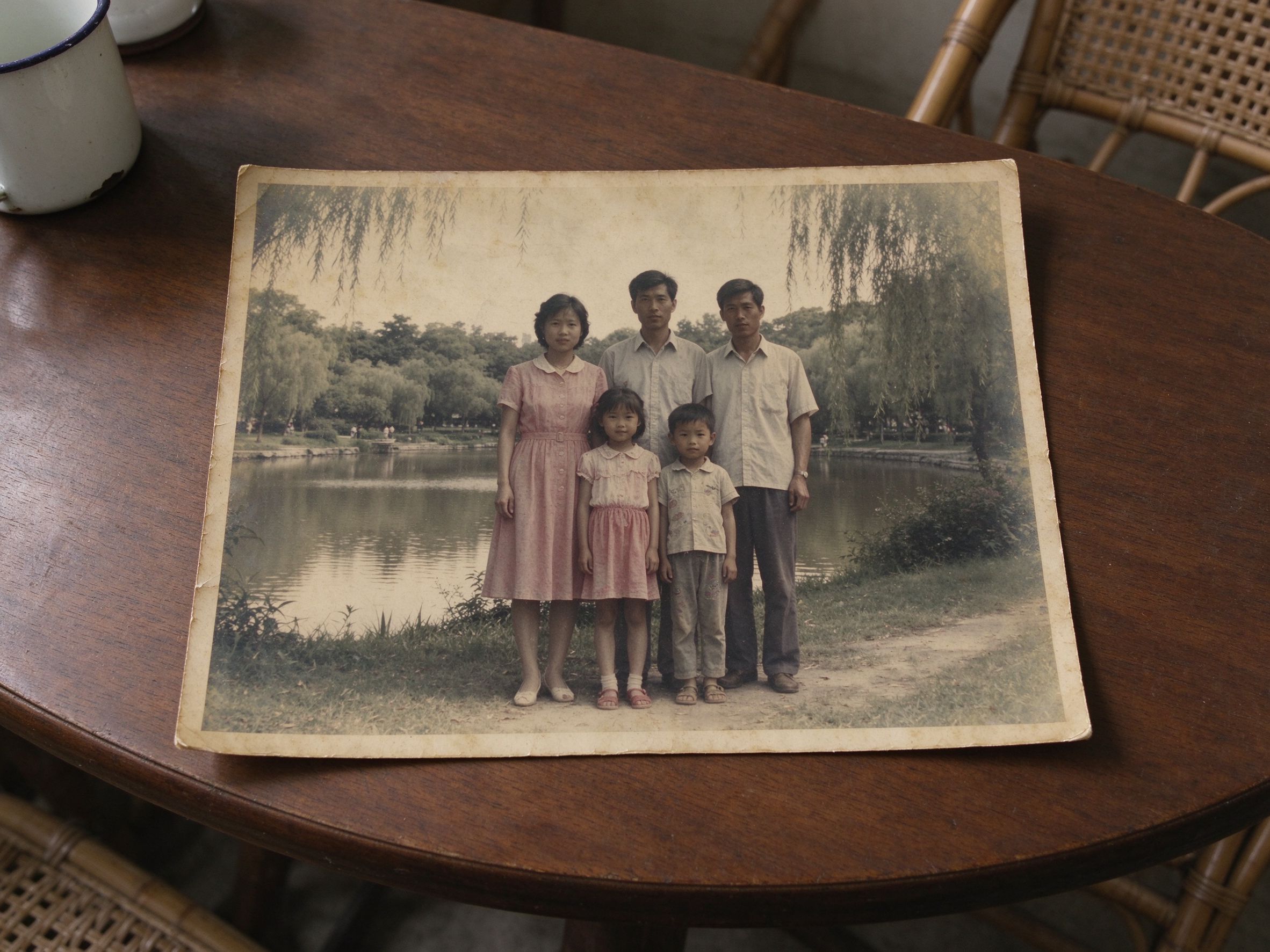
Faded Photo Fixer
Restore faded color first, then make it pop.
先恢复褪色的颜色,再让它跳出来。
Related Guides
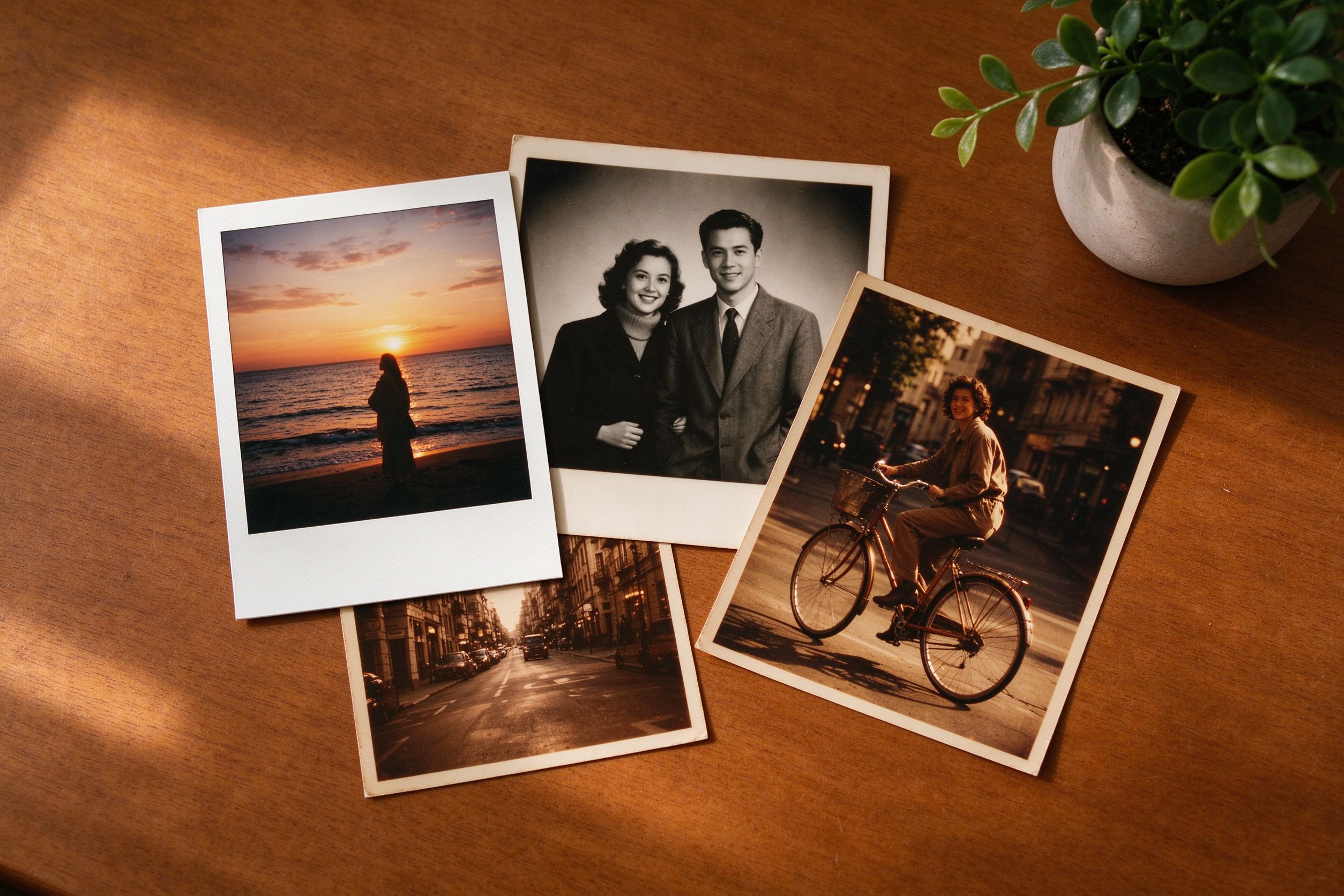
Creative Vintage Effects: Movie, Vignette & Frames
Layer selective color with grain and frames for mood.
把选择性上色与颗粒、边框叠出氛围。
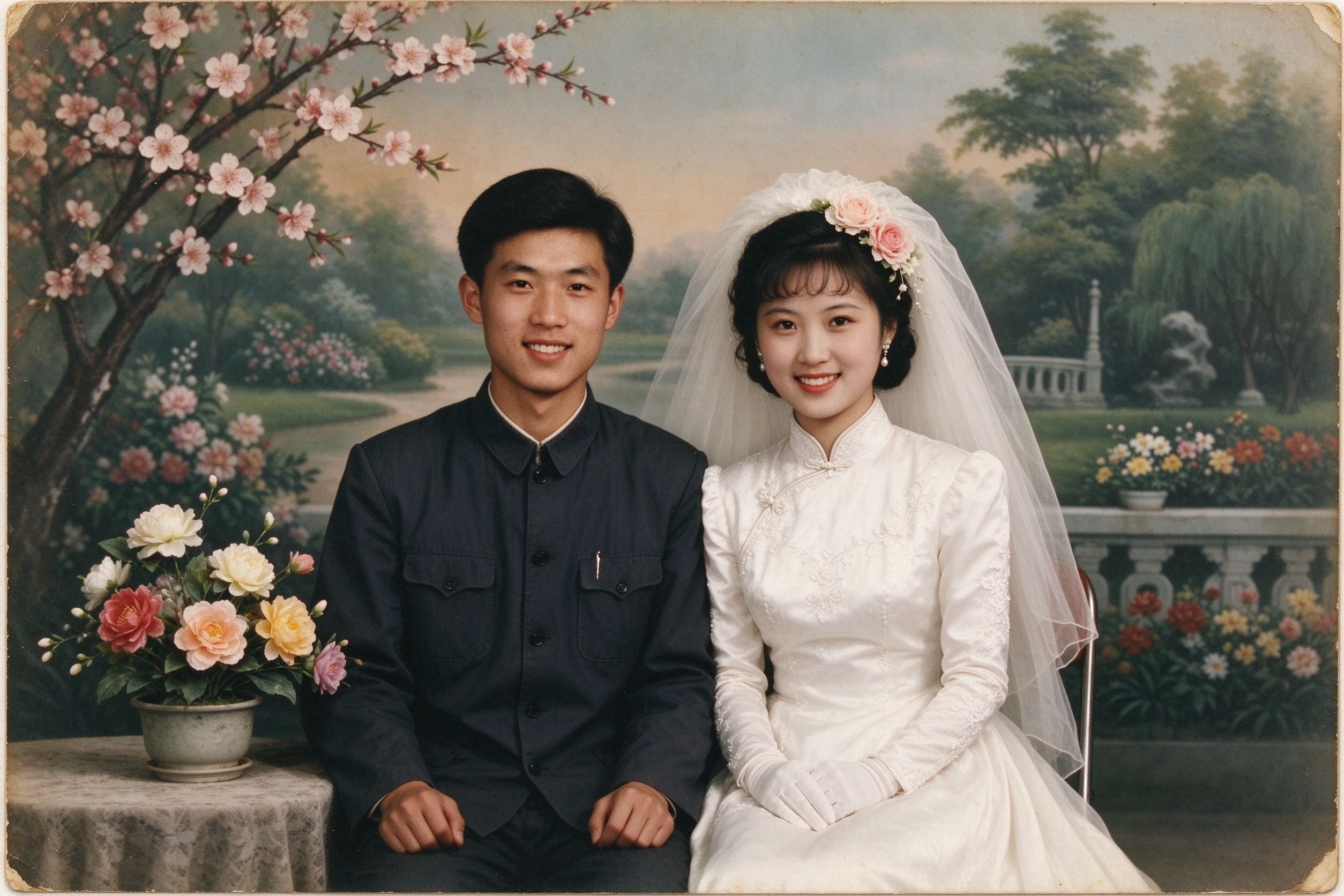
How to Restore Wedding Photos from Decades Ago
Keep the bouquet's color in timeless B&W wedding shots.
在黑白婚礼照里让花束颜色保留下来。
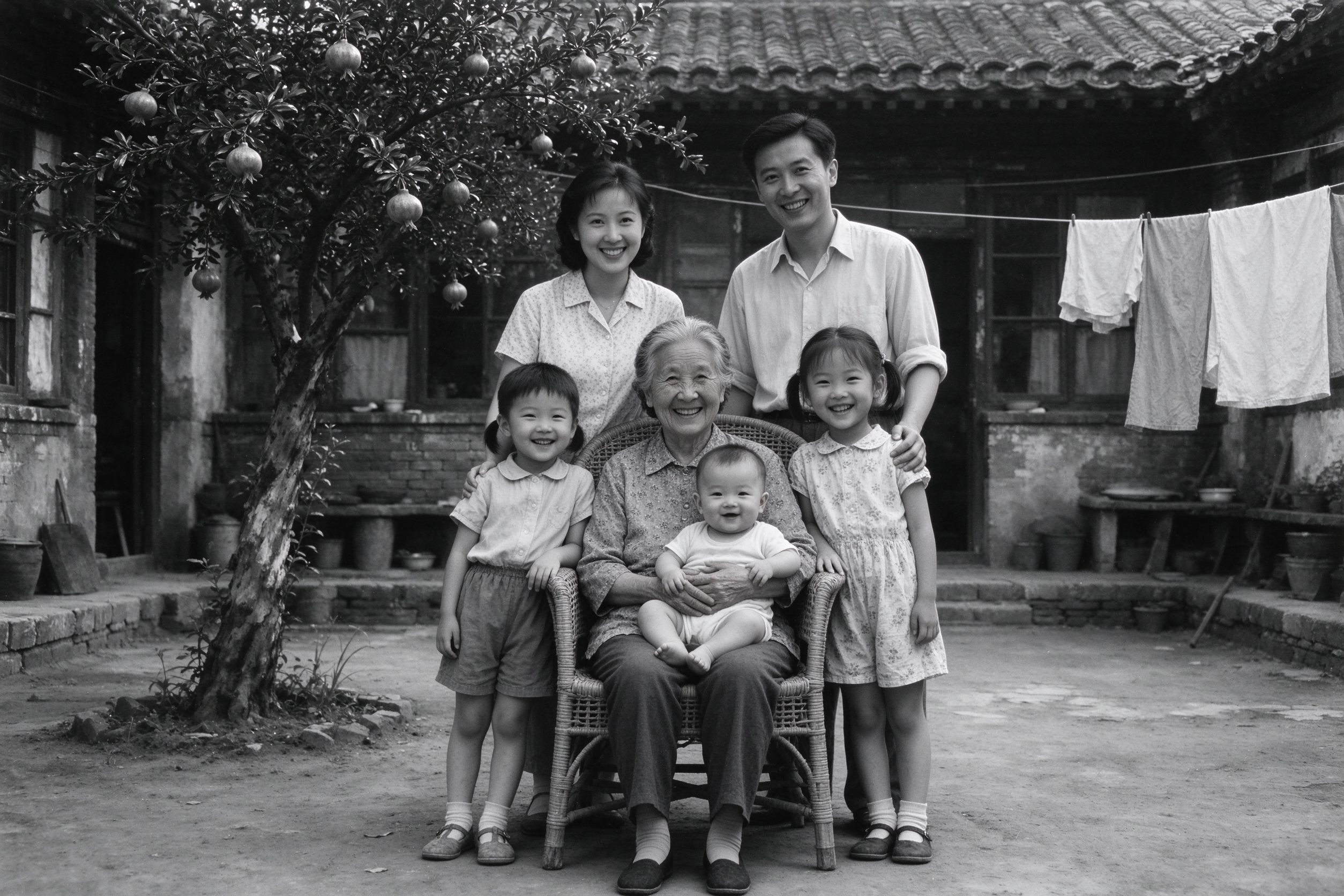
How to Convert Old Photos to Black and White Properly
Color pop sits on top of great monochrome — learn the base.
Color Pop 建立在好黑白之上——先打基础。
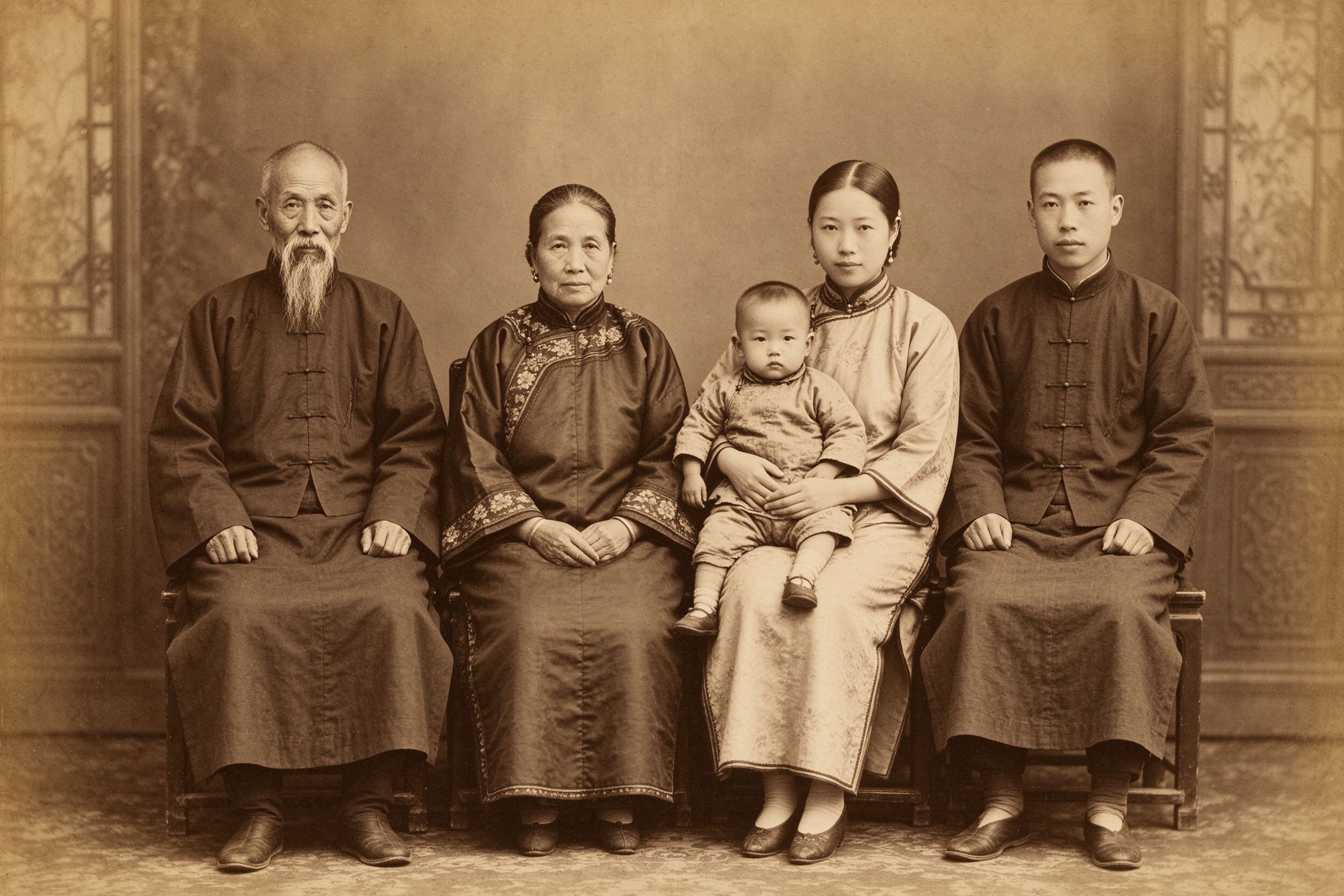
The Art of Sepia: Making Photos Look Truly Vintage
Warm the whole frame instead of isolating color.
与其隔离颜色,不如把整个画面染暖。